More often than not, you may notice your C drive running out of space. When that happens, your computer can slow down, apps may lag, and your PC might even run into system crashes. This is the time you need to clean your C drive to free up storage and get your PC back to normal. However, since the C drive stores essential system files, deleting the wrong items can cause serious problems. If you are dealing with the same dilemma, don’t worry. This guide will introduce the safest and most effective ways! Just read on to learn how to clean C drive Windows 11 and boost your PC speed easily!
Why Is My C Drive Full on Windows 11?
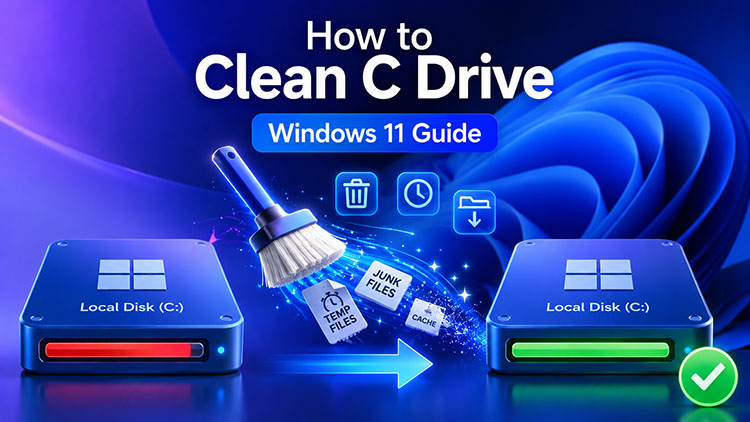
The C drive is the primary system partition in Windows 11, which is the default location for system files, installed programs, and temporary data. Over time, it might fill up quickly due to these common reasons.
Junk and temporary files: They are created by Windows updates and apps, which might build up over time and consume storage space.
Program installation files and caches: Large setup files, app data, and logs stay even after installation, gradually taking up significant space on your drive.
System restore points and hibernation files: These system features store backups and memory data, which can occupy several gigabytes of valuable disk space.
Downloads and user files: Documents, videos, and photos might be saved by default to the C drive. They accumulate quickly and reduce available storage space.
Because the C drive contains many important system files, it’s not always safe to delete things randomly. So, how to clean my C drive Windows 11 safely? In the next section, let’s check out the most powerful tool that can help you clean and optimize your system without risks!
How to Clean Up C drive Windows 11 Efficiently For Faster PC - Advanced SystemCare
Insufficient C drive space might lead to sluggish performance and various errors. If you are looking for a safe way to solve this problem, Advanced SystemCare is a great choice. This professional system optimization tool can help you clean and optimize your PC effectively. Now let’s see how to clean up C drive Windows 11 with its powerful features.
1. How to Clean Up C drive Windows 11 Intelligently with AI Mode
Advanced SystemCare offers an intelligent AI mode, which can automatically analyze your PC and apply the most suitable cleaning and optimization. Here’s how to clean C drive in Windows 11 with AI in simple steps.
Step 1. Download and launch Advanced SystemCare on your PC
Step 2: Head to the Care tab. Click on the AI mode and the Scan button.
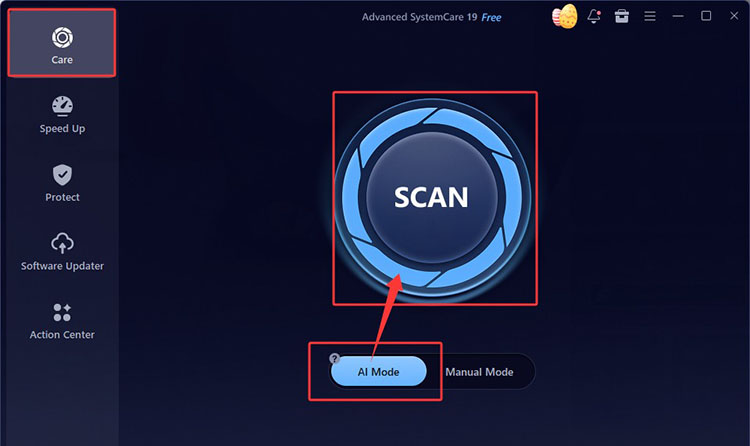
Step 3. Advanced SystemCare will list the items that need to be cleaned and optimized. Click on the Fix button to proceed.
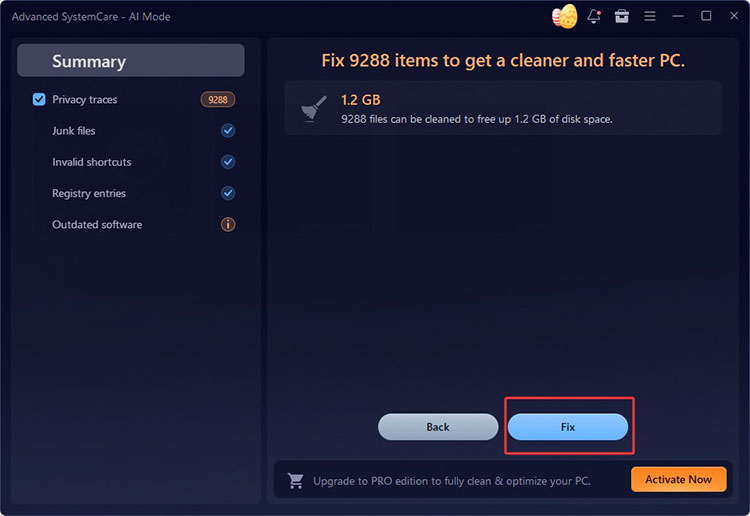
Step 4. Wait for a while, and your PC will be optimized based on system status.
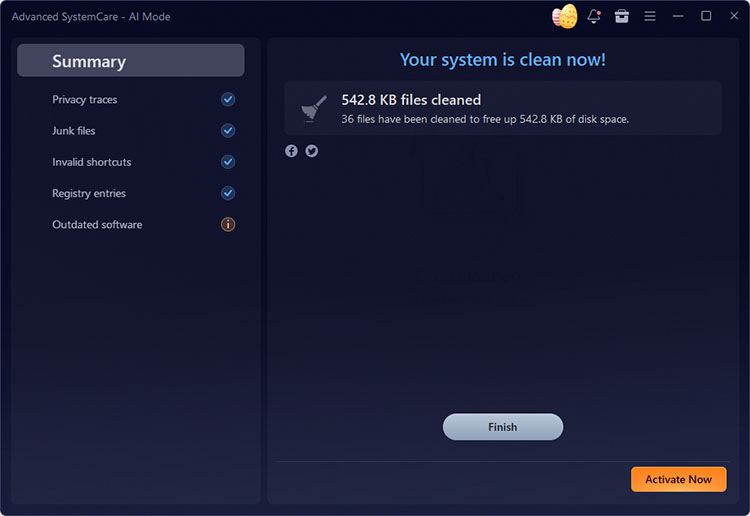
Tip: You can also switch to manual mode if you prefer to customize the scan. Just select the preferred options for scanning.
2. How to Deep Clean C drive Windows 11 Without Losing Data - Disk Cleaner
Want to clean your C drive thoroughly and safely? Try the Disk Cleaner tool, which offers a deep cleaning function without affecting important system files. Here’s how to clean C drive Windows 11 without losing data.
Step 1. Launch Advanced SystemCare, head to More Optimization Tools in the bottom right.
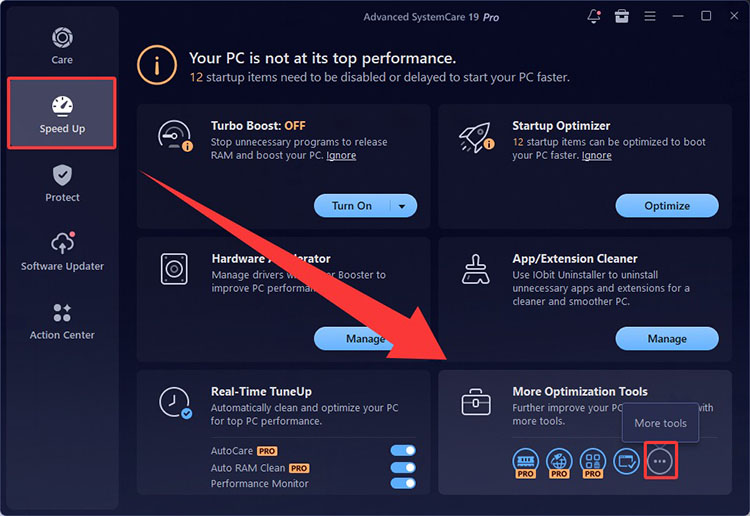
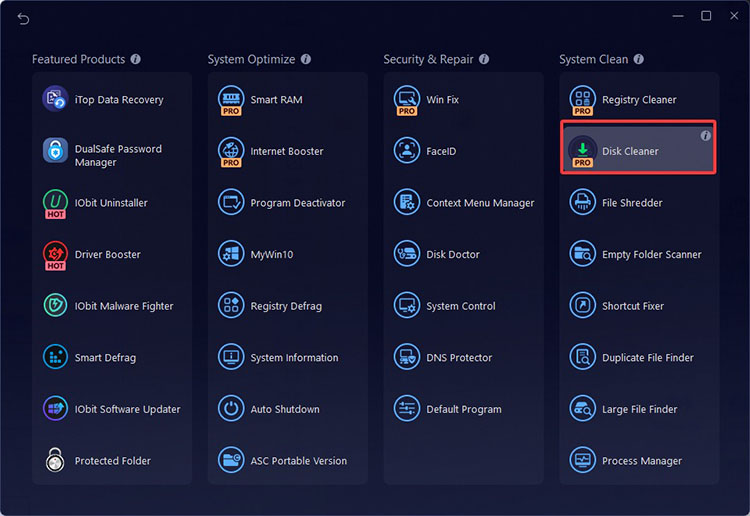
Step 2. Choose System Clean > Disk Cleaner to download the tool.
Step 3. Click the C drive. Tick the option “Use safe mode” to exclude some critical directories to ensure safety. Then click on the Next button to clean the drive.
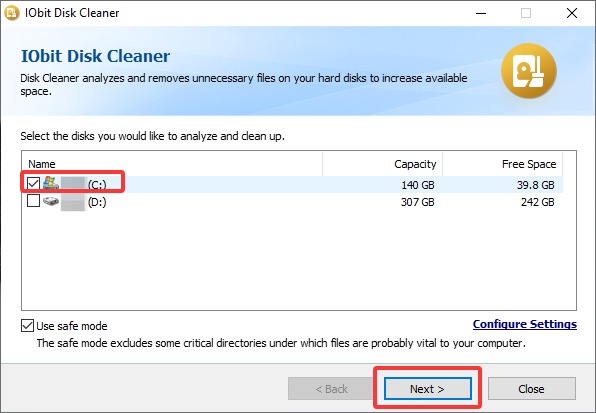
For those wondering how to deep clean C drive Windows 11 safely, this feature offers a reliable solution that won’t risk deleting important system files.
3. How to Clean C drive in Windows 11 by One-Click Deleting Large Files
Another effective way to free up more space is to remove large files stored on your C drive. They often take up significant storage and can slow down your system. For these files, Advanced SystemCare has a dedicated tool to manage them. Let’s see how to clean C drive Windows 11 using the Large File Finder tool.
Step 1. From the More Optimization Tools, click on the three-dot icon, then select the Large File Finder. Click on it to download the tool.
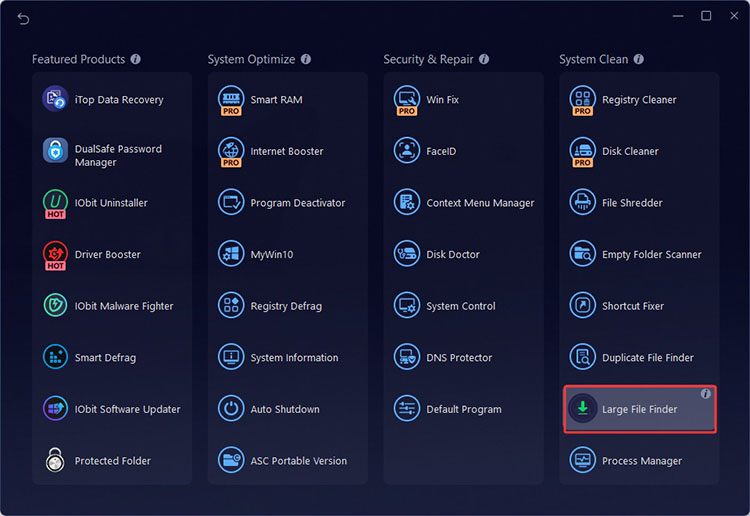
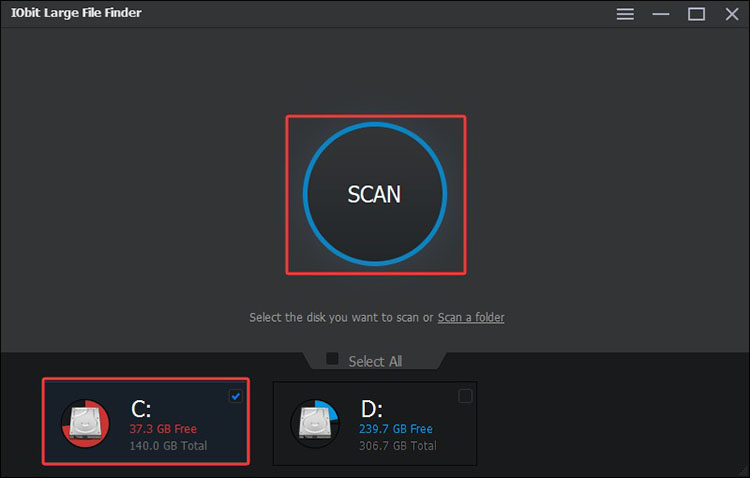
Step 2. It will open automatically after downloading. Choose the C drive for scanning.
Step 3. The software will list all the large files. Review and choose any one for deletion.
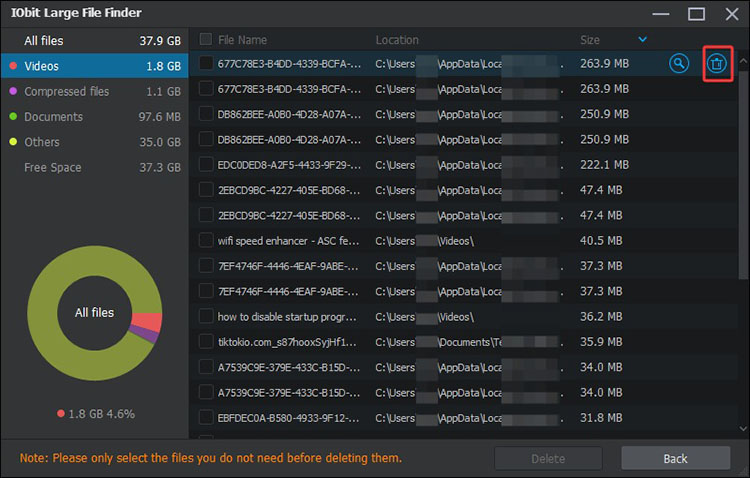
Tip: All the files listed are not recommended for deletion. You can check the files one by one before you delete them.
8 Manual Methods on How to Clean C Drive Space in Windows 11
Now you know how to clean C drive Windows 11 with Advanced SystemCare. In addition, Windows 11 comes with some built-in features that let you clean C drives as well. Here are the manual approaches you can try.
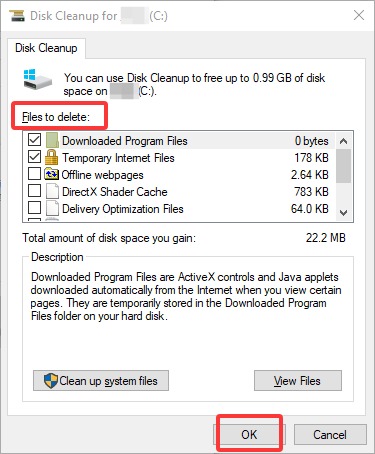
Use Windows Disk Cleanup Tool: Search for Disk Cleanup in the Start Menu and select C drive. Check the types of files you want to delete (Temporary Internet Files, Download Program files, etc.), then select Delete Files to confirm.
Empty the Recycle Bin: You can also right-click the Recycle Bin and select Empty to reclaim deleted file space.
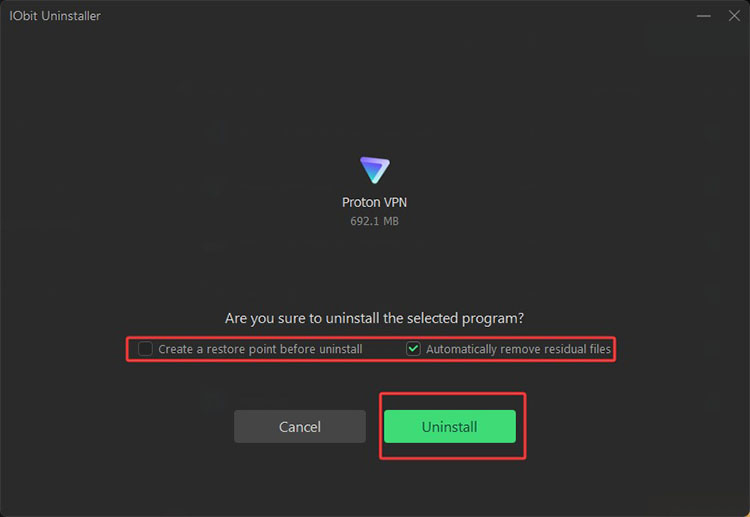
Uninstall Unnecessary Programs: IObit Uninstaller is a solid choice. It can remove unused programs and thoroughly delete leftover files, helping you free up more disk space on your PC. Here’s how to uninstall apps with the best uninstaller for Windows 11.
Step 1. Download IObit Uninstaller and install the software on your computer. Launch the program and navigate to the “Programs” section to view all installed applications.
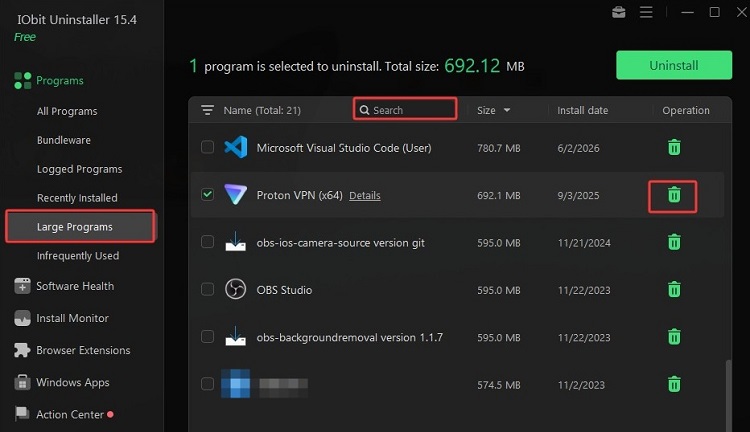
Step 2. Choose the app you want to remove. Click the “Uninstall” icon on the left to delete it from your system.
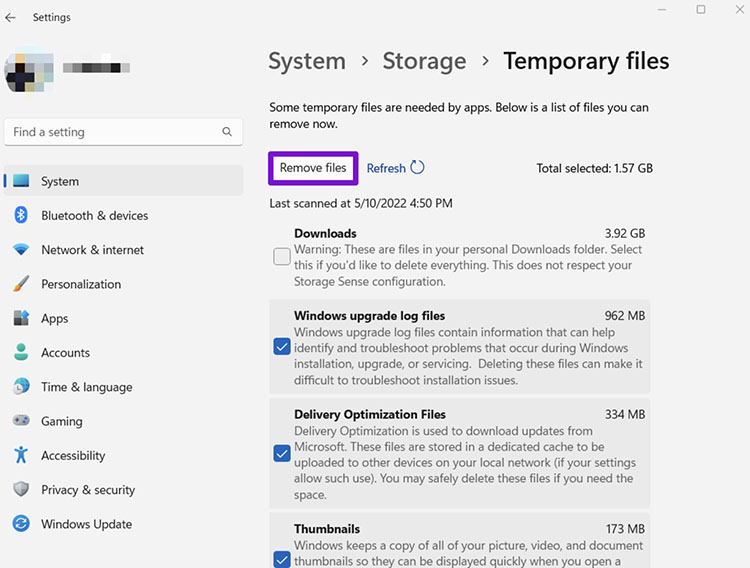
Clear Temporary Files: Open Windows Settings, go to System > Storage, then click Temporary files. After scanning, select unwanted items and click Remove files to free up space.
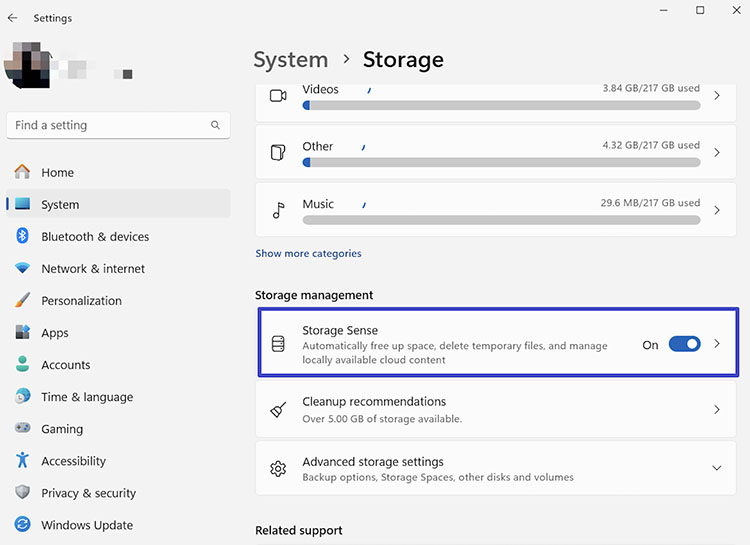
Enable Storage Sense: You can go to Settings > System > Storage > Storage Sense. Turn it on to clean the temporary files on the C drive automatically.
Move Files to External Storage: How to Clean C Drive Space in Windows 11 without software? Just transfer large files like videos, images, and documents from your C drive to an external hard drive to free up space.
Use Cloud Storage Services: You may also upload important files to OneDrive or Google Drive, then remove local copies from your C drive to get more space.
Tips to Prevent C Drive Space From Filling Up Again
With the dedicated Advanced SystemCare and the methods above, you should know how to clean C drive Windows 11 easily. However, without proper management, you might encounter Windows 11 100 disk usage again. To avoid this, it’s important to maintain a few smart habits:
Set default download and save locations to another drive, so large files don’t accumulate on the C drive unnecessarily.
Regularly review installed programs and uninstall apps you no longer need to free up valuable storage space.
Avoid installing large applications or games directly on the C drive to prevent excessive storage consumption.
Monitor disk usage through the Windows Task Manager, which can help you quickly identify storage-hogging files or processes and take timely action.
Schedule weekly scans with Advanced SystemCare to automatically clean junk files, optimize performance, and keep your system running smoothly and efficiently.
Bonus Tips: How to Boost PC For Optimal Performance
Advanced SystemCare is not just a simple tool to clean the C drive space in Windows; it’s an all-in-one system optimization and protection solution. The software can effectively enhance overall system performance and ensure your computer stays secure from potential threats. With its comprehensive features, you can enjoy a faster and safer computing experience.
Highlights of Advanced SystemCare:
With advanced AI-powered technology, it automatically scans and deeply cleans system logs, temporary files, junk data, and invalid registry entries, which frees up valuable space effortlessly.
How to clean C drive Windows 11 with optimization at the same time? Advanced SystemCare can get you covered. It can intelligently organize drive data to improve disk speed and reduce file-load time, optimizing your overall disk performance.
The software can also manage startup items/apps to significantly shorten boot time and enhance internet speed, which contributes to a much smoother and faster browsing experience.
Your system security is the top priority. Advanced SystemCare also provides antivirus protection to protect your system against various potential spyware, adware, Trojans, bots, and hijackers, ensuring your PC stays safe at all times.
Conclusion
How to clean C drive Windows 11 effectively? IObit Advanced SystemCare is definitely a powerful choice worth considering. It offers multiple advanced features to clean junk files, optimize PC performance, and protect your system effortlessly. While built-in Windows tools can also get the job done, they often require more time and manual effort. If you are looking for a smarter and more convenient solution, try IObit Advanced SystemCare. The software is your best companion to enjoy a smoother and more responsive PC experience!
Advanced SystemCare Free
- Clean: 420 billion traces removed & 85 EB junk files cleaned
- Protect: 80 million unauthorized access blocked & 20 million bugs fixed
- Speed Up: 6 million hours of startup time saved & Turbo boost
- Optimize: Auto clean and auto care your PC with AI mode