- Support Center
- Multiple Languages
- Language
- Help Us Translate
Expert in
PC Health Solution

All-in-one PC health solution: clean, optimize and secure

Comprehensive PC cleaning, optimization and protection

Keep drivers always up-to-date

More stable performance with less system crashes

Protect millions of computers against malware

Top computer security with full-round protection

Protect against viruses & boost PC performance
Clean: 420 billion traces removed & 85 EB junk files cleaned
Protect: 80 million unauthorized access blocked & 20 million bugs fixed
Speed Up: 6 million hours of startup time saved & Turbo boost
Optimize: Auto clean and auto care your PC with AI mode

GPU, CPU, and PSU bottlenecks hinder the rest of the components from functioning properly. This blog tells you the reasons behind and solutions to address all types of bottlenecks.



Bottleneck Meaning: One hardware component hits its limit and holds other parts back.
Signs Your PC Has Bottlenecks: Slow gaming, responding, multitasks switching, overheating, etc
Know the Types of Bottlenecks: GPU/CPU/RAM/Driver/Operating System bottlenecks.
How to Deal with Bottleneck: Upgrade hardware, update drivers, clean PC, etc
Should You Upgrade PC: Upgrade hardware when updating drivers and system improvement does not work.
What does a PC bottleneck mean? A bottleneck occurs when one hardware component limits the performance of other parts in the system. In this blog, you will learn about the most common types of PC bottlenecks, how to identify them, and practical ways to reduce their impact to improve overall system and gaming performance.
The most common components that become performance bottlenecks are the CPU and GPU. A bottleneck is also known as a “narrow neck” problem, where one slower component holds back the performance of faster hardware - similar to a traffic jam where the slowest car delays everyone behind it.
# PC Bottleneck Meaning
Common signs of PC bottlenecks include FPS drops, black screens, overheating, stuttering, and poor graphics performance. These issues can be caused by both hardware and software limitations. In the following sections, you will learn about the common causes of bottlenecks and practical methods to reduce or overcome them.
# Laptop Bottleneck Meaning
Bottlenecks also exist on laptops. However, upgrade options are often more limited because many core components are soldered directly onto the motherboard. In most laptops, the CPU and GPU cannot be replaced, while components such as RAM, SSDs, HDDs, and batteries are usually upgradeable depending on the laptop model.
Check whether you have encountered any of the situations below. If so, your PC may have one or more hardware bottlenecks affecting overall performance:
# Signs of Hardware Bottlenecks
One component constantly reaches 100% usage
FPS does not improve after upgrading a component
PC becomes slow during gaming or streaming
Sudden frame drops during demanding tasks
Long boot or loading times
Slow response when switching between programs
Applications take longer than usual to load
If your hardware specifications are already good but the user experience still feels poor, the problem may be caused by software bottlenecks instead.
# Signs of Software Bottlenecks
Powerful hardware still feels slow
High CPU or RAM usage while idle
Programs freeze randomly
PC slows down after running for some time
Unstable FPS despite strong hardware
Performance improves after closing background apps
You can use the IObit Online Bottleneck Calculator to check whether your PC has potential hardware bottlenecks.
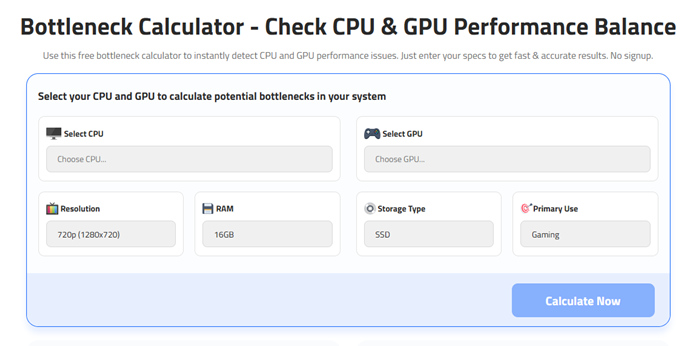
This section explains the most common types of PC bottlenecks. While many users focus only on hardware limitations, software bottlenecks can also severely affect overall system performance.
# Hardware Bottlenecks
1. CPU Bottleneck
A CPU bottleneck occurs when the processor cannot keep up with the workload or GPU performance. Common symptoms include high CPU usage, low FPS, stuttering gameplay, input latency, and slow response when switching between applications.
2. GPU Bottleneck
A GPU bottleneck happens when the graphics card cannot handle rendering demands efficiently. This often causes low FPS at high resolutions, unstable frame rates, poor graphics performance, and constantly high GPU usage.
3. RAM Bottleneck
Insufficient or overloaded RAM can heavily reduce system responsiveness. Common issues include freezing, long loading times, multitasking lag, and frequent game or application crashes.
# Software Bottlenecks
Software bottlenecks are commonly related to drivers, operating systems, and excessive background processes. Even high-end hardware can perform poorly if software optimization is bad.
1. Driver Bottleneck
Outdated or corrupted drivers can significantly reduce PC performance. GPU driver issues causing low FPS, ray tracing problems, and rendering instability. Audio driver latency causing stuttering or delayed sound. Network driver problems causing connection instability and high ping
2. Operating System Bottleneck
Operating system issues can negatively affect overall hardware communication and system stability. Common problems include: USB disconnection issues, poor CPU scheduling, sleep and wake errors, and random freezing or crashes.
3. Background Process Bottleneck
Too many background applications can consume CPU, RAM, storage, and network resources. This may result in: Slow desktop response, delayed application launches, laggy multitasking, longer loading times, and reduced gaming performance.
# Can Bottlenecks Damage Your PC?
In most cases, bottlenecks do not directly damage your PC hardware. However, they can cause overheating, loud fan noise, thermal throttling, and overall system instability. Modern computers are designed with protection mechanisms that automatically reduce performance to prevent serious hardware damage.
In this section, you can see several practical solutions to address both hardware and software bottlenecks on your PC.
How to Deal with Bottlenecks?
Upgrade outdated hardware
Balance CPU and GPU performance levels
Install more or faster RAM
Switch from HDD to SSD
Use a reliable PSU with enough wattage
Update drivers and optimize background processes
How to Reduce a Bottleneck with Software?
Use a PC performance optimizer like IObit Advanced SystemCare to clean the PC
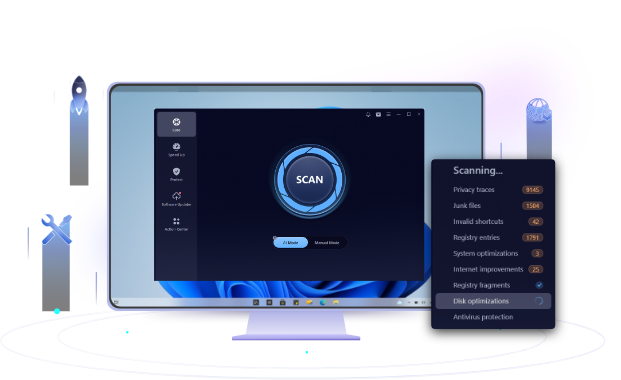
Manage background processes regularly
Clean RAM usage with tools like Mem Reduct
Disable unnecessary startup programs
Use software (Windows Task Manager) to identify resource-heavy applications, and beware of cryptojacking software
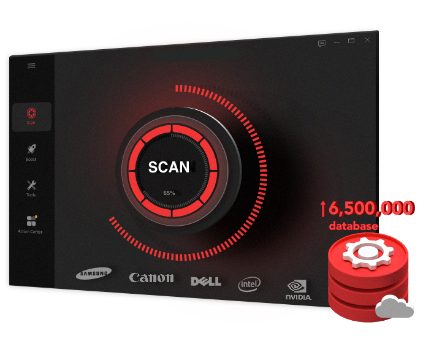
Use a driver updater to update outdated drivers
Under These Circumstances, You Should Upgrade Your PC to Overcome Bottlenecks
If your CPU frequently stays near 90–100% usage during normal workloads, consider upgrading the processor
If browser tabs constantly reload or multitasking feels slow, upgrade RAM from 8GB to 16GB or from 16GB to 32GB
If you need to drastically lower in-game settings to run games smoothly, consider upgrading the GPU
If Windows boots very slowly or loading times are unusually long, check the storage device and upgrade from HDD to SSD
If GPU performance remains poor even after upgrading the graphics card, consider replacing the PSU with a higher wattage power supply
A PC bottleneck happens when one component, driver, or software process limits overall system performance. Common causes include weak CPUs, insufficient RAM, slow storage, overheating, and outdated drivers. Identifying the real bottleneck helps improve gaming, multitasking, and stability. A balanced PC with optimized software delivers smoother and more reliable performance.
 People Also Ask
Why is Warzone so laggy on PC? How do you fix lag and stuttering in Warzone? Find out main reasons and get available fixes that help improve gaming performance.
What do driver updates do? Check this all-in-one guide inside.
Free up disk space by safe Windows Installer folder cleanup. This guide shows how to use Settings, Disk Cleanup, etc., to remove unwanted installer files.