

- Support Center
- Multiple Languages
- Language
- Help Us Translate
Expert in
PC Health Solution

All-in-one PC health solution: clean, optimize and secure
Comprehensive PC cleaning, optimization and protection

Keep drivers always up-to-date
More stable performance with less system crashes

Protect millions of computers against malware

Top computer security with full-round protection

Protect against viruses & boost PC performance
Automatically scan and update drivers.
Update game ready drivers for peak gaming performance.
Identify and fix various common of hardware issues.
Boost 30% of system performance for fast & smooth running.

Are your USB ports not working on your Windows PC? Follow these 10 quick fixes, from power checks to driver updates, to get your USB ports working normally.



Common symptoms of USB ports not working
Common causes of USB ports not working
10 methods to fix “USB ports not working”
It is frustrating when the problem of “USB ports not working” occurs suddenly. You cannot access flash drives, mice, keyboards, and other peripherals as expected. Many factors, including power glitches, outdated USB drivers, and incorrect system settings, trigger this issue. Keep reading to explore 10 practical fixes and bring your USB ports back to normal.
Faulty USB ports often send out clear warnings. Check these “USB port not working computer” signs to confirm your issue.
Windows does not pop up any notification after plugging in a USB drive, mouse, or keyboard
Connected USB devices keep disconnecting and reconnecting randomly
Devices show up in Device Manager with warning icons
USB accessories get power but cannot transfer data
Only some USB ports work while others stay unresponsive
Unexpected failures of USB ports happen for both software and hardware reasons. Check these common triggers for USB port not working laptop.
Corrupted or outdated USB drivers
Improper USB power management settings
Damaged cables, hubs, or USB devices
Dirt or physical damage to USB ports
Windows update conflicts
Temporary system glitches
Overloaded USB power supply
USB port faults often come from simple hardware and power problems. Run these fast pre-checks to rule out basic USB issues first.
Use a Powered USB Hub
Plug the hub into wall power
Connect your USB device to the hub
Test detection and stability
Check Your Motherboard Connections (Only for front panel USB ports)
Power off PC
Open case, re-seat front USB header cables on motherboard
Reboot and test USB ports
Default power rules can shut down USB ports automatically. Tweak these settings to stop unexpected disconnections.
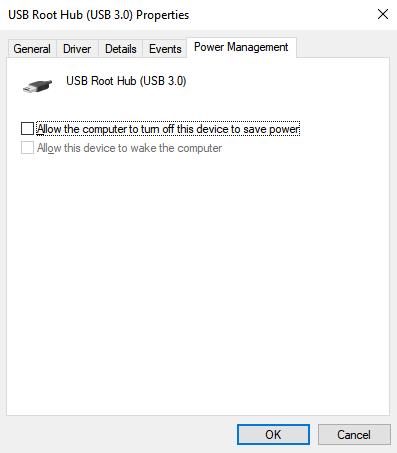
Open Device Manager and expand Universal Serial Bus controllers
Right-click each USB root hub, choose Properties, and go to Power Management
Uncheck “Allow the computer to turn off this device to save power” for each hub
Third-party software can interfere with USB port functions. Test your devices inside Safe Mode to isolate these conflicts.
Open Windows Recovery
Plug in USB devices and check response
Windows has a built-in tool to detect and fix USB port errors automatically. Run this troubleshooter for quick detection.
Press Win + I to open Settings
Click System > Troubleshoot > Other troubleshooters.
Click Run next to your issue
Reboot and test USB ports
Outdated system files trigger many USB port malfunctions. Install available Windows updates to fix known compatibility bugs.
Open Windows Update
Download and install pending updates
Restart PC and test USB ports
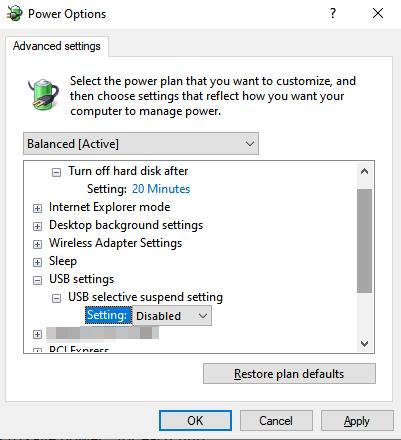
Windows selective suspend may cut power to active USB ports. Turn off this feature to keep your USB devices running steadily.
Open Power Options and click Additional power settings
Click Change plan settings > Change advanced power settings
Disable USB selective suspend setting and save changes
Fast Startup can block USB port initialization after shutdown. Turn it off for full hardware re-detection.
Open Power Options
Click Change settings that are currently unavailable
Uncheck Turn on fast startup
Save changes and restart PC
Old or corrupted drivers are a top cause of USB port failures. Refresh your USB controllers with the latest driver files.
Open Device Manager
Right-click USB Root Hub/Host Controller
Choose Update driver or Uninstall device
Reboot for auto-reinstall (use Driver Booster for a one-click update)
Tips: For a smoother and more reliable update experience, try Driver Booster. It runs a deep scan to identify problematic USB drivers, downloads verified official driver versions, and completes the whole update process with just one click. Skip complicated manual lookups and get your USB ports back to normal quickly.
Corrupted system files interfere with normal USB port functions. Run these commands to repair Windows system files.
Open Command Prompt as admin
Run “sfc /scannow”
After completion, run DISM.
Restart PC
Disabled USB options in firmware block USB port recognition. Verify USB support switches inside your BIOS or UEFI menu.
Restart PC, press BIOS hotkey on boot
Locate USB controller options
Set USB support to Enabled
Save and exit
The Bottom Line
Resolving USB ports not working does not always require complicated technical operations. The 10 fixes above cover common software and power-related issues that break USB recognition. With proper steps, most USB port troubles can be solved without buying new hardware.
 People Also Ask
Discover Tiny10, a lightweight version of Windows 10 built for low-spec devices. Learn its features, benefits, requirements, and limitations.
PC stuck on boot screen? Learn how to fix pc stuck on boot screen with proven methods like Safe Mode, SFC scan, and driver updates.
Yes. You can try 3 ways on how to uninstall the Realtek audio driver and reinstall it to solve the problem that PC sound is not working generally.