If your computer is overheating, freezing, or slowing down, this could be a sign of overheating. Knowing how to check PC temperature is essential to avoid problems and maintain good performance.
In this guide, you will learn how to check the processor temperature, which tools to use, and how to monitor everything quickly and easily.
What is the ideal CPU temperature?
Before learning how to check your CPU temperature, it's important to understand what is considered normal:
30°C to 50°C: normal temperature at rest or during light tasks.
60°C to 85°C: common during games, videos, and demanding programs.
Above 90°C: Dangerous! The CPU is overheating.
Although some modern processors can withstand temperatures up to 100°C, frequently operating near this limit can reduce their lifespan.
How to Check CPU Temperature Using Software
If you are wondering how to know your computer temperature in real time, be aware that Windows 11/10 doesn't display this information completely. Therefore, the best option is to use a program to monitor your PC's temperature . Here are some of the main ones:
1. Advanced SystemCare - Real-time monitoring
Advanced SystemCare is an all-in-one solution for system monitoring and optimization. It's an ideal choice for those who want to track their CPU temperature daily, especially during gaming or heavy use. It allows you to view the temperature of the processor , GPU, motherboard, and fan speeds, all in real time through a floating panel in Windows.
Advanced SystemCare Free
- Clean: 420 billion traces removed & 85 EB junk files cleaned
- Protect: 80 million unauthorized access blocked & 20 million bugs fixed
- Speed Up: 6 million hours of startup time saved & Turbo boost
- Optimize: Auto clean and auto care your PC with AI mode

Advantages:
Intuitive interface.
It displays the CPU temperature continuously, even while the PC is in use.
It includes additional features such as cleaning up junk files, optimizing startup , and freeing up memory.
Ideal for those who want to monitor their PC's processor temperature and improve overall performance.
Price: The basic version is free, the pro version costs R$ 74.99 per year.
How to use:
Step 1: Download and install Advanced SystemCare
Step 2: After installation, open the program and open the "Performance Monitor".
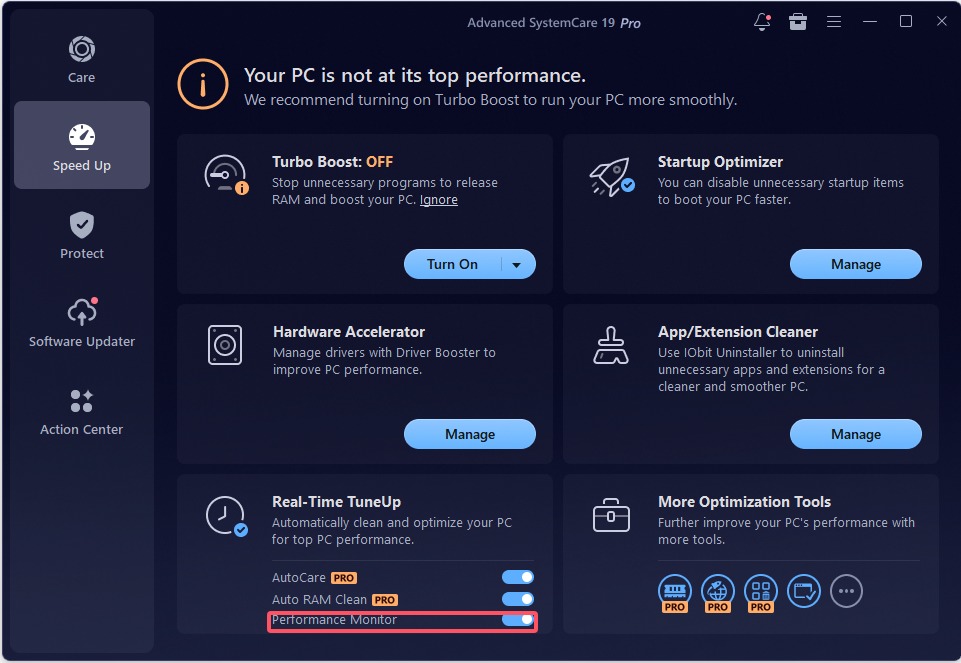
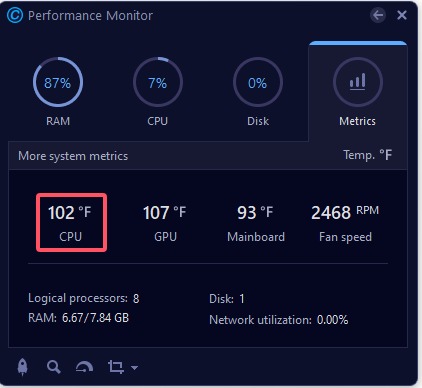
Step 3: A floating panel will display CPU temperature, memory usage, disk load, and more.
2. Core Temp–Lightweight and processor-focused
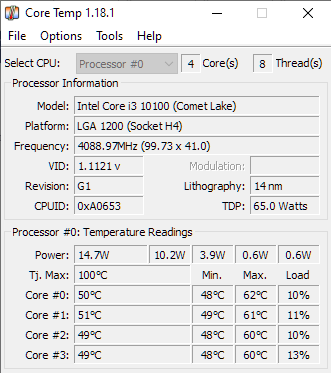
Core Temp is a small but powerful tool designed exclusively to display processor temperature. It's a great option for those looking for how to check CPU temperature in Windows 11, displaying the temperature of each core individually, ideal for users who want precision.
Advantages:
Extremely lightweight and with low resource consumption.
Exclusive focus on the processor, without distractions.
Displays the CPU temperature directly in the taskbar.

Limitations:
Price: Free
3. HWMonitor - Detailed analysis of all components
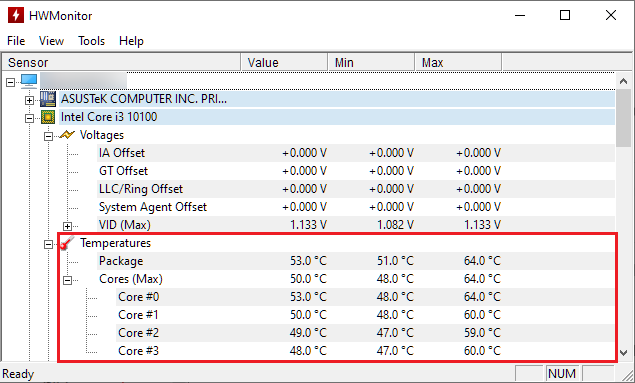
HWMonitor is a complete program for those looking for how to view your processor temperature, displaying real-time technical data on various PC components, such as processor temperature, video card temperature, hard drive temperature, voltage, and fans.
Advantages:
Very comprehensive: monitors CPU, GPU, SSD/HDD, motherboard, and much more.
Clear visualization of temperatures and real-time statistics.
Compatible with most modern hardware.
Limitations:
Price:
4. MSI Afterburner - Ideal for gaming and overclocking
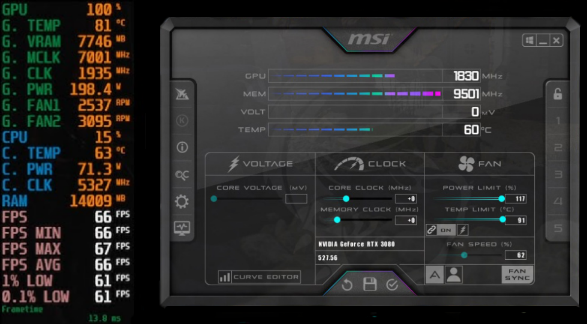
MSI Afterburner is popular among gamers for allowing them to monitor CPU and GPU temperatures during gameplay, even in full-screen mode. It can also be used as an in-game overlay to measure the power consumption of each component, making it a great option for those who want to see their PC temperature in real time. It's also a powerful tool for overclocking.
Advantages:
Allows for real-time data overlay during gameplay.
Displays temperature, usage, and fan speed of the processor and video card.
Customizable interface and overclocking support.
Limitations:
Price: Free
5. AIDA64 - Advanced System Monitoring
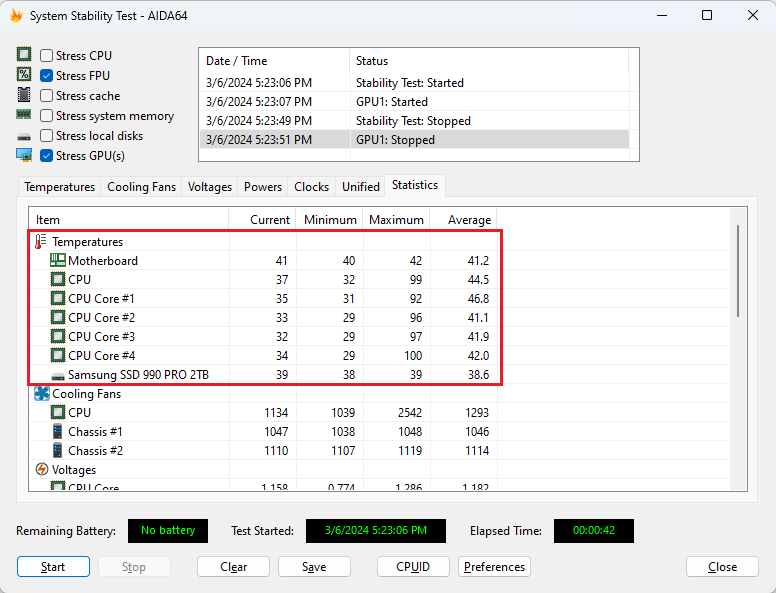
AIDA64 is a professional hardware diagnostic and monitoring software, widely used by overclockers. It allows you to view CPU and PC temperatures in great detail, displaying information about the CPU, GPU, motherboard, memory, and other system sensors. Within the Sensor section, you can check the processor temperature in real time, track hardware usage, and monitor fan speeds.
Advantages:
Extremely detailed monitoring of all components.
It allows you to view the temperature of the processor and other system sensors.
Recommended for users who want advanced hardware analysis.
Limitations:
Price: $65.95 per year, with a 30-day free trial.
6. Speccy - Quick computer information
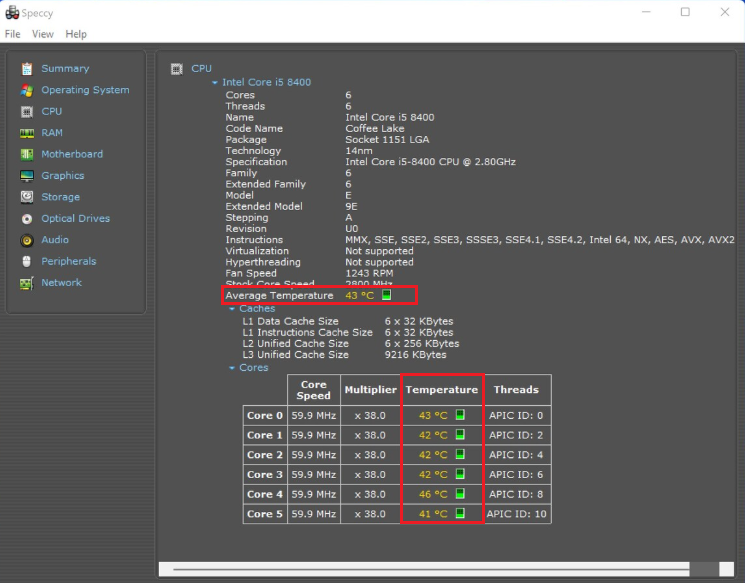
Speccy is a lightweight program that quickly displays key computer information. It's a good option for those who want to know how to see PC temperature quickly and easily on a daily basis. With it, you can view the PC's temperature, including the CPU, motherboard, and video card. As soon as the program opens, it displays a system summary, allowing you to check the processor temperature and other important hardware data.
Advantages:
Simple and easy-to-understand interface.
It allows you to quickly see the processor and system temperature.
Lightweight program that is quick to install.
Limitations:
Price: Free.
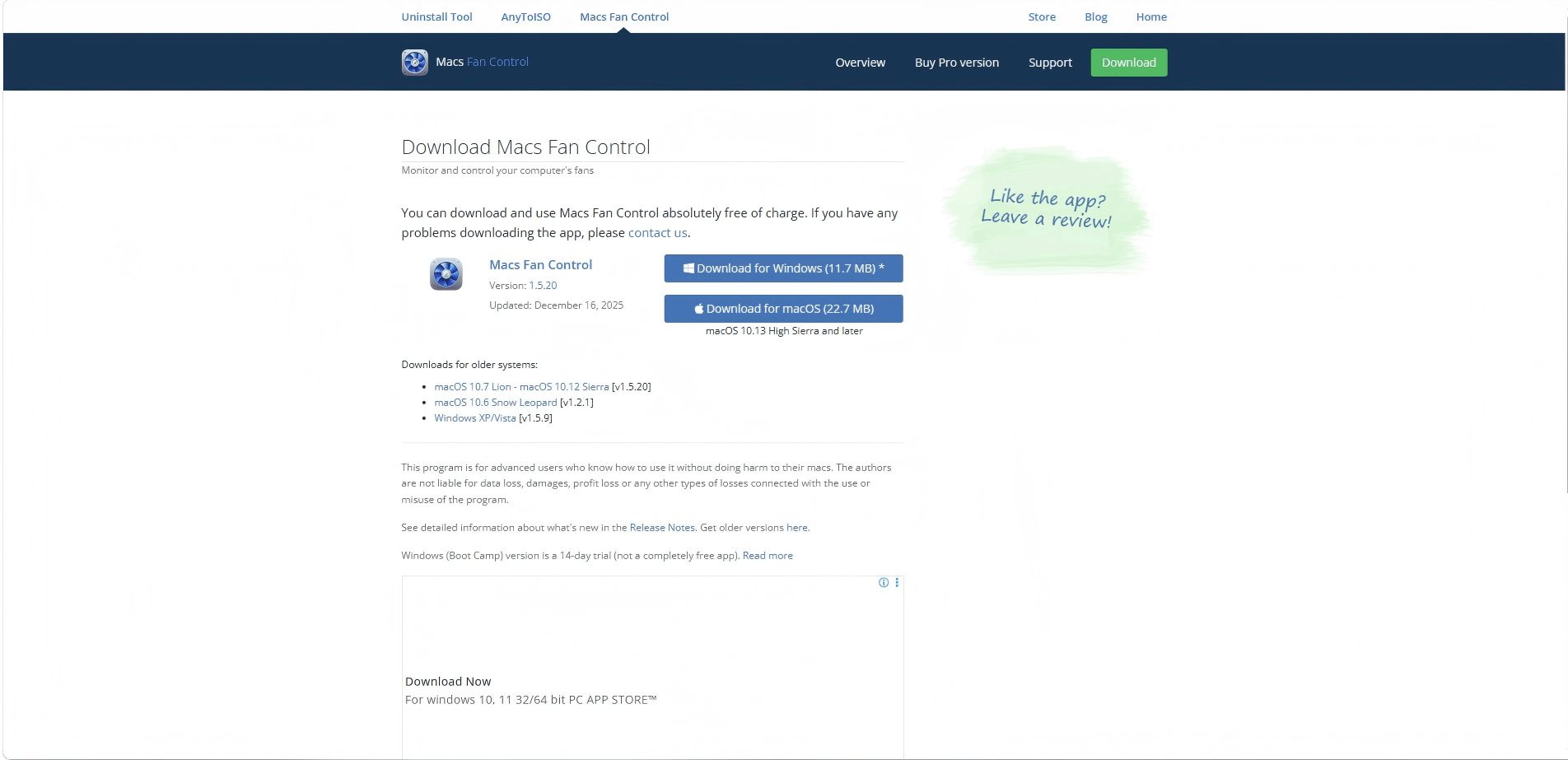
7. Macs Fan Control - Monitoring for Mac users
Macs Fan Control is an ideal tool for Mac users who want a simple way to monitor their PC's temperature. The program allows you to track the temperature of the CPU and other system sensors, as well as manually adjust fan speeds to improve cooling.
Advantages:
Limitations:
Basic version is free, Pro version is ¥2895 per year.
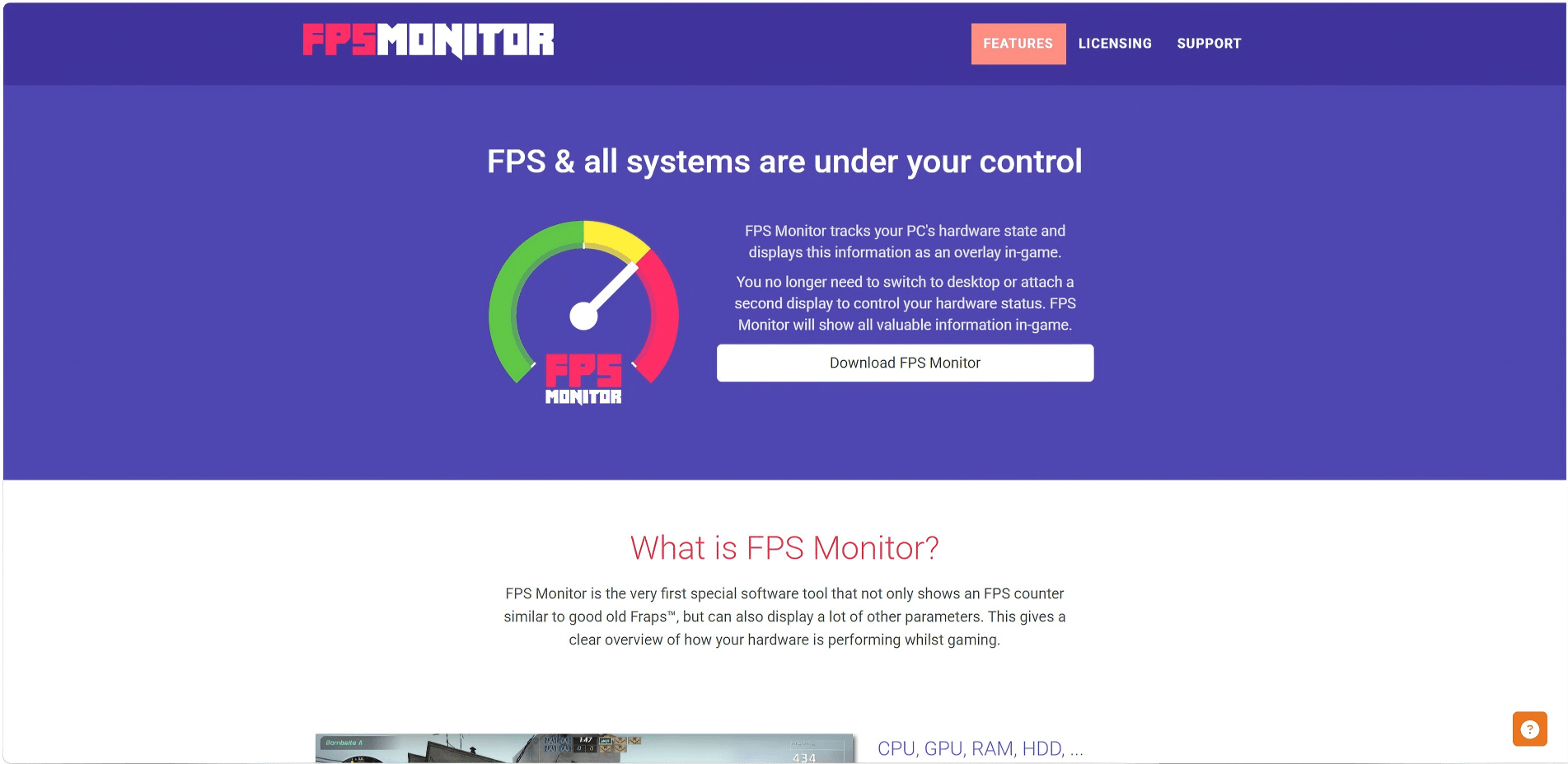
8. FPS Monitor - Real-time monitoring during games
FPS Monitor is a great option for those who want to see their PC's temperature while playing games, and it's also a program that monitors PC temperature in real time. It displays information directly on the game screen, including CPU temperature, GPU temperature, and FPS, without needing to leave the game.
Advantages:
Displays processor temperature in real time during games.
Full-screen overlay with detailed data.
Ideal for gamers who want continuous monitoring.
Limitations:
Price: $9.95 to obtain the license, you can test it.
How to Check The Processor Temperature Without Software (BIOS/UEFI)
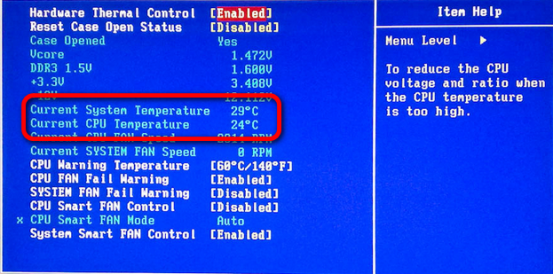
If you want to know where to view the processor temperature without installing anything, you can use the system's BIOS/UEFI .
Step 1: Restart your PC
Step 2: Press the BIOS access key. Most common keys by manufacturer:
Dell / Lenovo: F2
HP: Esc or F10
ASUS / Acer: Del or F2
Step 3: Look for sections such as "Hardware Monitor" or "System Health".
Step 4: The processor temperature will appear listed.
Advantages:
Limitations:
How to Reduce Processor Temperature: 4 Effective Actions
Monitoring is important, but keeping CPU temperature under control requires simple steps. Here's what to do:
1. Perform Physical and Digital Cleaning
Remove dust from fans, heatsinks, and air vents.
Uninstall unnecessary programs and close background processes.
Tips
Advanced SystemCare helps clean your system with 1 click.
2. Improve the Cooling System
Check that there is good air circulation in the cabinet.
Use a ventilated laptop stand.
Replace the thermal paste if it is old or dry.
3. Control Performance
4. Keep your drivers and Windows updated
Older drivers affect thermal efficiency.
Use Driver Booster to automatically update chipset, video, and power control drivers.
Conclusion
Now you know how to check PC temperature easily. But the most important thing is to monitor it regularly. This prevents crashes and improves performance. If you want convenience, use a PC temperature monitoring program like IObit Advanced SystemCare. With just a few clicks, you can track everything in real time and keep your PC fast and safe.
Frequently Asked Questions about PC Temperature
1. What temperature is dangerous for the processor?
In general, temperatures above 90°C can already be considered dangerous for most processors. When this happens frequently, the computer may automatically reduce performance or even shut down to prevent hardware damage, even if you already know how to check your PC's temperature.
2. Why does my processor temperature increase during gaming?
Games and demanding programs use more computer resources. This causes the processor to work harder, naturally increasing the processor temperature during these activities. Using a PC temperature monitoring program can help track this in real time.
3. How often should I check my PC's temperature?
Ideally, you should check your PC's temperature whenever you notice slowdowns, freezes, or excessive fan noise. Using a program to monitor your PC's temperature regularly helps prevent overheating problems.
4. Where are the PC's temperature sensors located?
The sensors are located inside the CPU, motherboard, and GPU. They measure the temperature in real time and send the data to the system. It is precisely these sensors that a PC temperature monitoring app relies on to display the information.
5. Does overheating affect PC performance?
Yes. When the temperature gets high, the system automatically reduces performance to prevent damage. This causes slowdowns and crashes, reinforcing the importance of knowing how to monitor your PC's temperature.
6. What is the best program to check PC temperature?
It depends on the use. For beginners, Advanced SystemCare is a simple and practical option. For advanced users, HWMonitor or AIDA64 offer more details. All are good program options for viewing PC temperature , depending on your needs.