- Support Center
- Multiple Languages
- Language
- Help Us Translate
Expert in
PC Health Solution

All-in-one PC health solution: clean, optimize and secure

Comprehensive PC cleaning, optimization and protection

Keep drivers always up-to-date

More stable performance with less system crashes

Protect millions of computers against malware

Top computer security with full-round protection

Protect against viruses & boost PC performance
How to install device drivers? Easy guide for both PC and desktop users to check for driver updates and download new drivers for free.



PC users should visit Nvidia and AMD official websites to download drivers
Laptop users should get drivers from their Original Equipment Manufacturers
Driver installation can fail
Driver update software to update old drivers in one click
How to install device driver? You may sometimes feel your PC doesn't work that well anymore; outdated drivers could be the reason. Slow loading, glitchy screen, and disconnection of USBs and webcams are all common signs. This blog instructs you to manually check for driver updates and automatically update all outdated drivers from safe resources via safe and efficient methods.
Your PC relies on different types of device drivers to keep everything running properly. While some can be updated manually, others are harder to manage without tools.
Here are the main types of drivers you’ll find on your system:
Graphic Drivers
Audio Drivers
Network Driver
Chipset Driver
Input Device Driver
Storage Driver
USB Driver
Camera Driver
For Desktop PC Users:
If your GPU comes from NVIDIA or AMD, you can visit their official websites to download the latest graphics drivers.
However, these websites only provide GPU-related drivers. Other drivers—such as audio, mouse, or USB drivers—need to be downloaded from different sources like your device manufacturer. Follow the paths below to address your driver problems accordingly:
Install GPU driver → NVIDIA / AMD
Install Audio driver → usually Realtek / OEM
Install USB / chipset → Intel / AMD / OEM
Install Mouse / peripherals → brand-specific
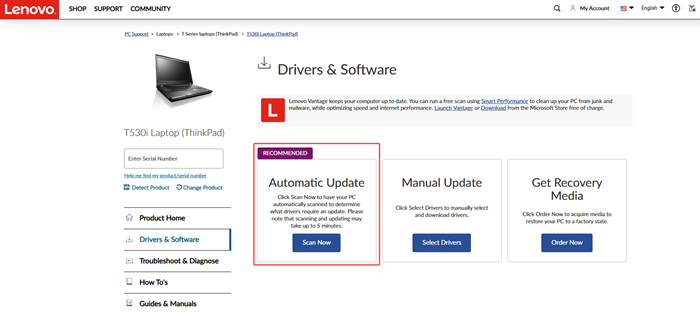
For Laptop Users:
If you are using laptops, the manufacturers are the first option for you. ASUS, Dell, and Lenovo, these Original Equipment Manufacturers (short for OEMs), also provide driver update services for their customers.
Here are the official OEM websites for driver update:
Lenovo: https://pcsupport.lenovo.com/us/en/products/laptops-and-netbooks/thinkpad-t-series-laptops/thinkpad-t530i/downloads
Dell: https://www.dell.com/support/home/en-ai?app=drivers
ASUS: https://www.asus.com/support/download-center/
HP: https://support.hp.com/us-en/drivers/laptops
Manually install and update your drivers via Windows Device Manager.
How to call out this window?
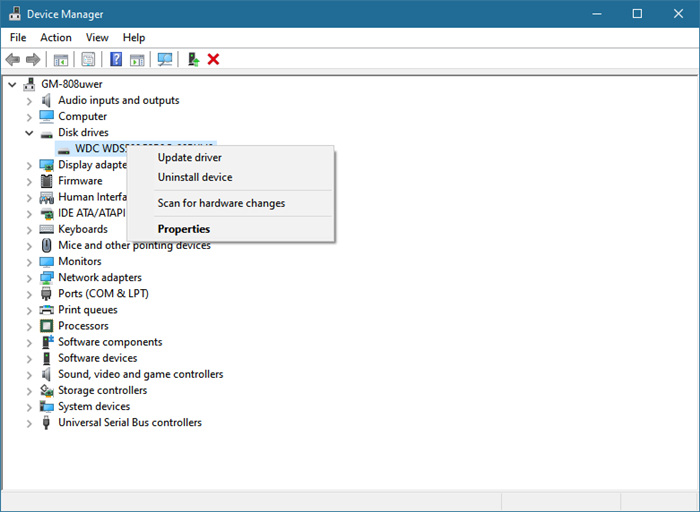
Double press Win+R
and from the menu click ‘Device Manager’
Now all the device drivers from your PC pop out
Right-click any driver and click on ‘Update Driver’
In the next window, please click on ‘Search Automatically for Drivers’
Note that Device Manager isn’t always as reliable as it sounds. In many cases, it fails to detect the latest drivers—especially for graphics cards and network adapters. So while it’s useful, it shouldn’t be your only method.
The manual driver update program from PC/Laptop start menu is weak. New drivers are not detected.
New drivers can cause problems such as black screens, so a backup point is the key.
Driver updates can fail especially when you get your drivers updated via Nvidia and AMD.
Looking for an easier way to manage everything at once? Driver updater tools can help.
IObit Driver Booster is a popular option that works well on both desktops and laptops.
Full system scan to detect outdated drivers
Automatically downloads the latest compatible drivers
Batch updates for multiple drivers at once
Free to download and easy to use
Creates a backup point before updates
This guide covers the most common ways to install and update device drivers on both desktop PCs and laptops. Whether you prefer manual updates or one-click solutions, keeping your drivers up to date is key to maintaining system performance and stability. Also, if you hate the manual steps, try IObit’s free Driver Booster now to get the hang of everything.
 People Also Ask
Free up disk space by safe Windows Installer folder cleanup. This guide shows how to use Settings, Disk Cleanup, etc., to remove unwanted installer files.
Yes. You can uninstall and reinstall Realtek audio driver to solve the problem that PC sound is not working generally. Try the 3 ways to fix now.
How to defrag hard disk Windows 11/10? Check this step-by-step guide inside.