- Centre de support
- Langues multiples
- Langue
- Aidez-nous à traduire
L’expert en
Solution informatique

La solution tout-en-un pour votre ordinateur

Nettoyage, optimisation et protection complets du PC

Gardez vos pilotes toujours à jour

Des performances plus stables et moins de plantages du système

Protège des millions d’ordinateurs contre les malwares

Sécurité informatique optimale avec une protection complète

Protection contre les virus et optimisation des performances PC

Confidential documents contain sensitive information, such as business contracts, financial records, customer details, and internal reports. Protecting these files on Windows requires more than simply storing them in a private folder.
You need to prevent unauthorized access, scan suspicious files, choose secure document-processing tools, back up important data, and delete files properly when they are no longer needed.
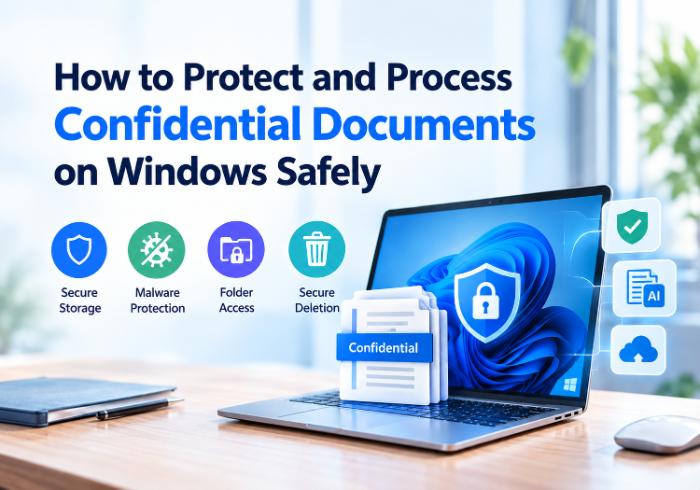
This guide explains how to protect confidential documents on Windows 11 using practical security measures and document-processing workflows.
A confidential document contains information that should only be available to authorized people. Common examples include:
Business records: Contracts, reports, and business plans.
Financial information: Invoices, bank statements, and tax records.
Personal data: Identification documents and medical records.
Customer and employee information: Contact details and personnel files.
The level of protection should match the sensitivity of the information. Documents containing financial, legal, or customer data may require encryption, restricted access, and secure storage.
Before choosing protection methods, understand how confidential files can be exposed.
Unauthorized access: Weak passwords, shared computers, and excessive permissions can expose private files.
Malware: Malicious downloads may steal information, damage files, or compromise your computer.
Cloud exposure: Online tools may transmit document content to remote servers, depending on their processing methods and privacy policies.
Recoverable deletion: Deleting a file or emptying the Recycle Bin does not guarantee that its contents are unrecoverable.
A complete security strategy should protect documents throughout their lifecycle, from storage and opening to processing and disposal.
Organize sensitive files in dedicated folders and limit access to authorized users. Windows provides several protection options. Device Encryption and BitLocker can protect supported drives, while Encrypting File System (EFS) is available on certain Windows editions for supported NTFS volumes.
You can also review folder permissions by right-clicking a folder, selecting Properties, and opening the Security tab.
For additional folder protection, consider IObit Protected Folder. Review its current features and compatibility to determine whether it meets your needs. Remember that folder access controls and encryption serve different purposes. Encryption is particularly important when protecting data on a lost or stolen device.
PDFs are common in business communication, but unfamiliar attachments should not automatically be trusted.
Before opening a downloaded PDF:
Verify the sender and check whether the attachment is expected.
Scan the file using a reputable security tool.
Keep Windows, your PDF reader, and security software updated.
Microsoft Defender Antivirus provides built-in protection on supported Windows systems. You can also consider IObit Malware Fighter for additional malware protection. Avoid uploading confidential documents to public scanning services without checking their data-handling policies. A clean scan also does not guarantee that a file is completely safe.
Protecting a document does not end when you store it securely. You may still need to summarize reports, compare contracts, extract information, or prepare business briefs. Online AI tools can simplify these tasks, but some require document content to be uploaded to remote servers. For sensitive files, it is important to understand where processing happens and how the provider handles your data.
Use Local AI for Documents
Local AI processes supported tasks on your own computer. When the entire workflow runs on-device, document content can remain on your device instead of being sent to an external AI service. This approach can be useful for reviewing internal reports, summarizing PDFs, extracting information, and handling confidential business documents.
Folder locks and malware protection help secure documents at rest and before they are opened. When the next step is summarizing, comparing, extracting information, or creating a brief, a local document workflow agent for Windows can keep supported processing on the device and carry the work across files and steps.
For professionals who handle repetitive document reviews, this can help reduce manual work while keeping sensitive information on-device when the selected workflow supports local processing. Before using any tool, verify its processing mode, network connections, and data-handling practices.
Backups help protect against accidental deletion, hardware failure, and ransomware. Keep copies of important documents on separate storage or in a secure backup service. For confidential files, choose encrypted storage with restricted access.
Where practical, maintain an offline or isolated backup to reduce the risk of ransomware affecting every copy. If you use cloud backups, review sharing permissions and enable multifactor authentication where available. Test your backups periodically to make sure you can restore the files when needed.
Deleting a file normally moves it to the Recycle Bin. Even after the bin is emptied, data may remain recoverable, depending on the storage device and deletion method. Before deleting confidential documents, check for additional copies in cloud folders, email attachments, temporary directories, and backups.
A dedicated utility, such as a file shredder, may make selected files harder to recover. However, traditional overwriting methods may be unreliable on SSDs. For highly sensitive data, consider device-supported sanitization methods and remember to address other copies separately. Always follow applicable legal and organizational document-retention requirements before disposal.
Use this checklist to improve your Windows document security:
Use a strong Windows sign-in password or PIN.
Enable drive encryption where supported.
Restrict confidential folders to authorized users.
Scan suspicious downloads before opening them.
Keep Windows and security software updated.
Check privacy policies before uploading documents to online tools.
Use verified local AI workflows for sensitive files when appropriate.
Maintain encrypted backups and test file recovery.
Securely dispose of unnecessary documents and review other copies.
How do I protect confidential documents on Windows 11?
Use strong account security, drive encryption where supported, restricted folder permissions, and malware protection. Back up important files and use appropriate secure-deletion methods when necessary.
Is password-protecting a folder enough?
Not always. Access restrictions can help prevent unauthorized use, but they do not necessarily encrypt the underlying data. Combine appropriate access controls with encryption for stronger protection.
Is it safe to use AI with confidential documents?
It depends on how the tool processes and stores data. Online services may transmit content to remote servers, while verified local AI workflows such as iBoomto can keep supported processing on your device. Always check the tool's privacy and security practices.
What is local AI for documents?
Local AI for documents uses models running on your computer to perform tasks such as summarization, extraction, and analysis. Performance depends on your hardware, the model, and the task.
Does deleting a document permanently remove it?
No. Ordinary deletion does not guarantee that data is unrecoverable. To secure sensitive files on Windows 11, use an appropriate secure deletion method or device-supported sanitization, depending on the storage technology.
Final Thoughts
Learning how to protect confidential documents on Windows means securing files before they are opened, controlling access during storage and processing, and disposing of them responsibly.
Combine encryption, malware protection, secure backups, and careful tool selection. When working with sensitive documents using AI, consider a verified local workflow to reduce unnecessary data transfers and maintain greater control over your information.