- Support Center
- Multiple Languages
- Language
- Help Us Translate
Expert in
PC Health Solution

All-in-one PC health solution: clean, optimize and secure

Comprehensive PC cleaning, optimization and protection

Keep drivers always up-to-date

More stable performance with less system crashes

Protect millions of computers against malware

Top computer security with full-round protection

Protect against viruses & boost PC performance
How to clean install Windows 11? Get detailed steps in this article.



Ensure an internet connection
Check the system requirements
Backup files
Download the media creation tool
Plug in the USB and boot it
Input the Product Key (skipable)
Start custom installation
The following are the system requirements for Windows 11. To check this info, you can go to Start > Settings > System > About > Device Specifications.
Processor: 1 GHz or faster with at least 2 cores on a compatible 64-bit processor or system on a chip (SoC).
RAM: 4 GB or more.
Storage: 64 GB or more.
System Firmware: UEFI, Secure Boot capable.
TPM: TPM version 2.0 (Trusted Platform Module).
Graphics Card: DirectX 12 compatible graphics / WDDM 2.x.
Display: >9” with HD Resolution (720p).
Attention: Even though your computer meets the minimum requirements of Windows 11, not all Windows 10 computers could upgrade to Windows 11. To check that, go to Settings > Update & Security > Windows Update. Check if the upgrade to Windows 11 is offered under Optional Updates.
Clean install means all existing data, settings and apps will be wiped out. From Windows 10 to Windows 11, a clean install ensures no leftover compatibility issues.
There are three common ways to back up your data or important files.
Way 1. Use an external storage device (USB drive, external hard drive, or SSD) to back up files you want to keep.
Way 2. Upload files to cloud storage (OneDrive, Google Drive) to back them up.
Way 3. Connect a hard drive or USB drive and use Windows built-in feature File History to back up files.
(Prepare a USB stick with at least 9GB storage for a bootable USB drive.)
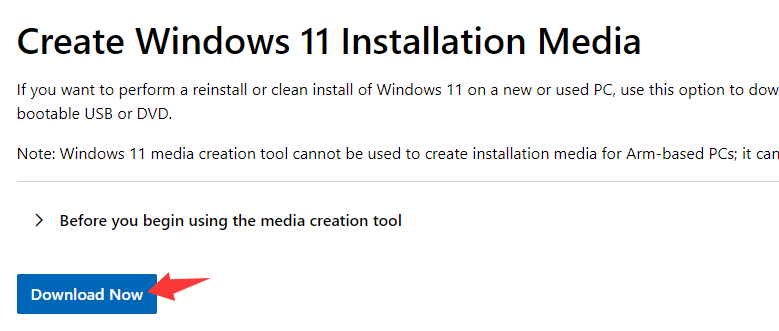
1. Go to the official Microsoft download page for Windows 11 to click on the Download now button under “Create Windows 11 Installation Media” to download the Media Creation Tool.
2. Open the file > Accept the license terms > Select “Create Installation media (USB flash drive, DVD, or ISO file) for another PC” .
3. Choose the language, edition, and architecture (usually 64-bit) > select USB flash drive and choose yours from the list of drives.
Then the tool will download Windows 11. Be patient as it takes a while.
Your computer will reboot after saving the BIOS settings. Make sure your USB stick is plugged in and boot the USB by pressing the boot menu key (F12 or Esc) during startup and select the USB drive.
On the setup screen, choose your language, region, and keyboard layout. Click “Next” > “Install Now”.
Upgrading from Windows 10, reinstalling on the same hardware, or pre-installed Windows 11 on your device, you don’t need to enter a product key.
Select “Custom: Install Windows only (advanced)” for a clean installation.
Then the installation begins. This process may take a certain time. It’s ok if your computer restarts several times. Just wait for the installation to complete.
Extra information to consider:
For Windows 11 overall protection, you could try some extra security apps except for Windows Defender, such as Avira, Avast, AVG, IObit. They are the big brands in the industry for cybersecurity solutions, including antivirus software, system optimization tools, and privacy protection. The following is a free product from IObit, Advanced SystemCare that is designed to improve the performance of your PC by cleaning, speeding up, and protecting it from various issues like junk files, privacy risks, and slowdowns.
 People Also Ask
Free up disk space by safe Windows Installer folder cleanup. This guide shows how to use Settings, Disk Cleanup, etc., to remove unwanted installer files.
How to protect my computer from viruses? Are there any effective ways to protect my computer from attacks? Do I need a professional antivirus tool for my PC?
How to fix corrupted files in Windows 11 to enhance system stability? This guide covers the most effective methods to repair damaged files on your PC.