About Driver Booster
Developed by IObit, Driver Booster is the ultimate one-stop solution for all driver‑related issues. Powered by its newly upgraded core functions, expanded resource database, and exclusive gaming optimization features, it allows you to effortlessly update, repair, and manage drivers to maximize system stability and hardware performance. Outdated, missing, or corrupted device drivers are the hidden culprits behind most Windows PC problems—ranging from system lags and random crashes to audio malfunctions, network failures, and unstable gaming. To eliminate these headaches and maintain peak computer performance, a professional driver management tool is indispensable.
The following guide will help you get familiar with Driver Booster quickly.
System Requirements
- System Requirements: Windows 11/10/8.1/8/7 (x64 / x86 / Arm64)
- 1 GB of free disk space mainly for driver download and installation
- 1024*768 screen resolution and above
Install Driver Booster
- Click here to download the latest Driver Booster.
- Double-click the downloaded driver_booster_setup.exe to start the installation.
Uninstall Driver Booster
You can uninstall Driver Booster by following the Uninstallation instructions
Activate Driver Booster PRO
Note: A valid license key is required to activate the PRO version. You can click here to purchase one. Already have one but forgot? Go here to get it back.
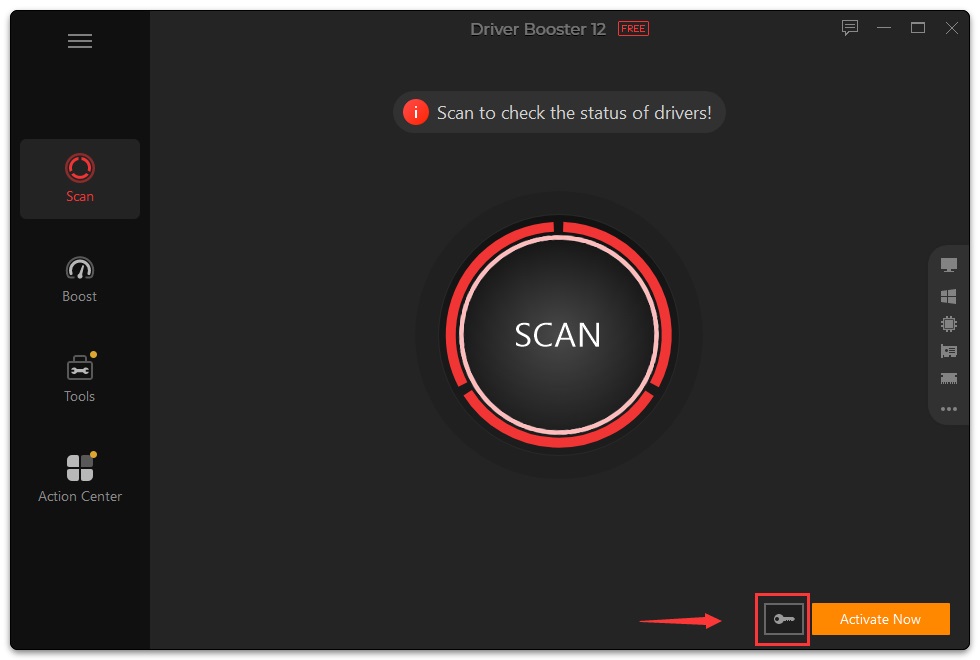
Click the Enter Code text link at the bottom left of Driver Booster interface, COPY & PASTE your license code into the box, and click the Activate button at the right side. Or visit here for step-by-step activation guidance with screenshots.
Update Driver Booster
Pro version users can always enjoy the latest version automatically with the Update automatically checkbox ticked by default in the Settings. FREE users can manually update Driver Booster by using either of the methods below:
- Click the
 icon on the top left and select Check for Updates.
 - Right-click the
 icon in the system tray and select Check for Updates.
Glance at Main Interface
When opening Driver Booster, you will see an eye-catching SCAN button. You can start a scan to check the status of drivers immediately. Furthermore, you can check the PC information by clicking the sidebar at the right side of the main window.

Scan / Update
Driver Booster can assist you to update the outdated drivers effortlessly.
Scan for Driver Updates
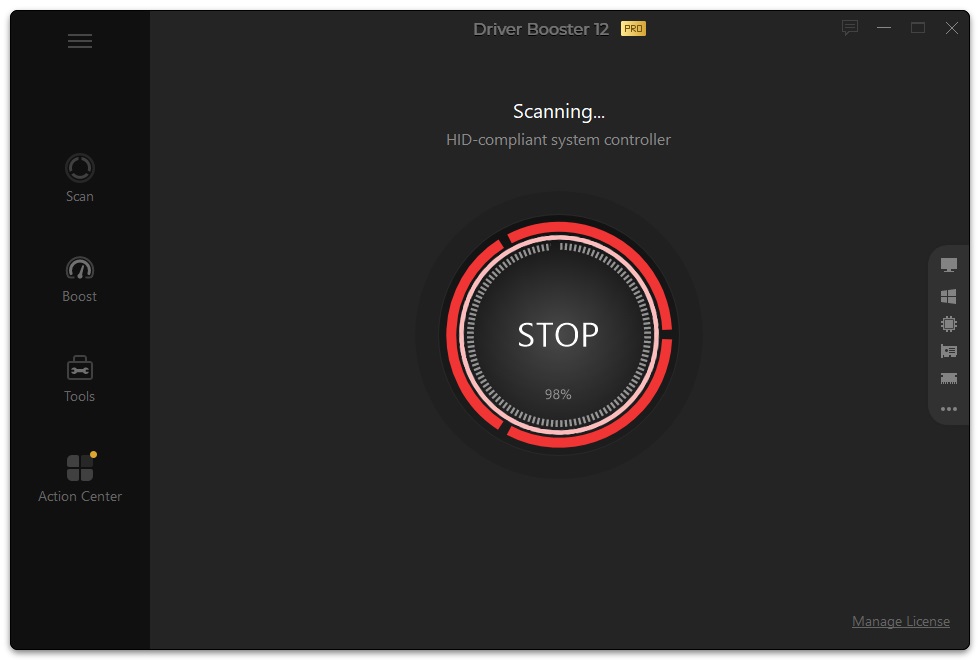
Click SCAN to check the status of drivers. You can STOP the scan and re-scan at any time you want.
Note:
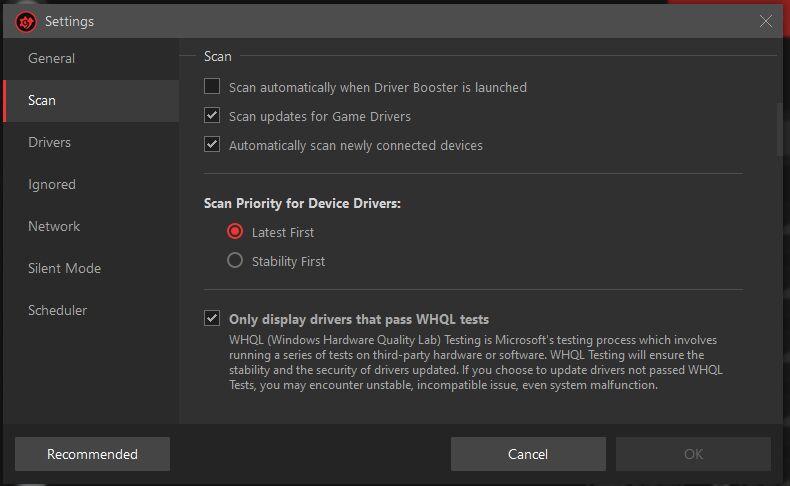
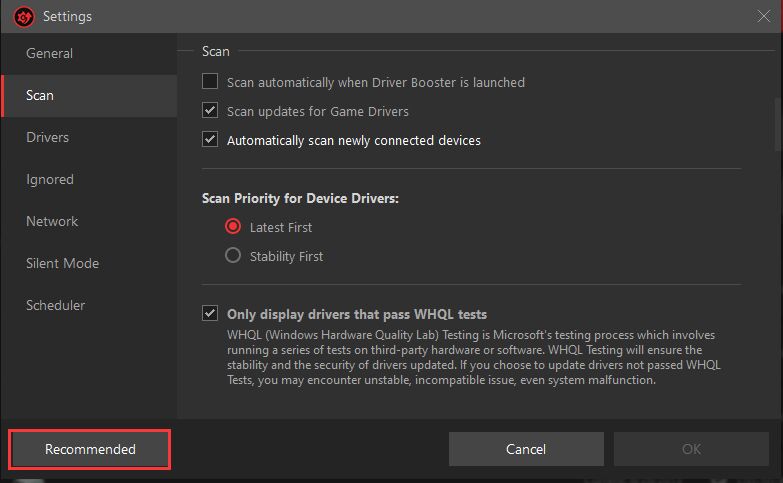
- By default, Driver Booster scans automatically when it's launched. Go to Settings to disable the automatic scan if you dislike it.
- You can also set your own driver-scan priority in Settings: Latest First or Stability First.
Scan Result
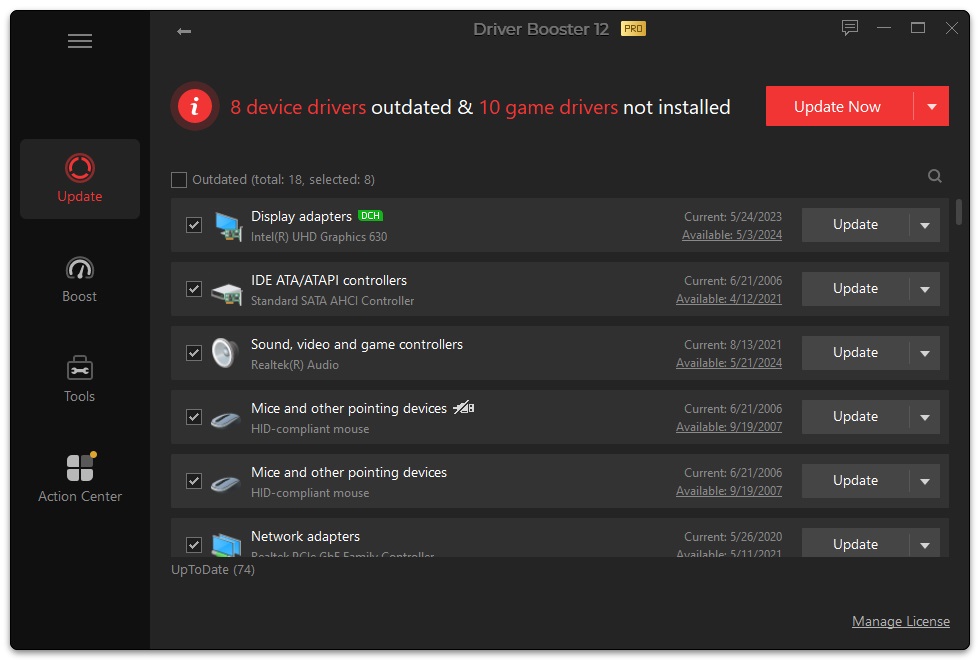
You can see the total quantity of outdated device drivers and outdated game components at the top of the scan results screen. The scan result depends on your PC condition. And Driver Booster scans for 4 issues:
- Outdated drivers, dates of both the current version and available version are provided.
- Missing drivers, the current status is "Missing Driver".
- Faulty drivers, the current status is "Faulty ".
- Not-installed game drivers, the current status is "Not Installed".
Update Drivers
You can follow either of the methods below to start the update:
- Click Update Now at the top right to update all selected drivers.
- Click Update at the right side of each driver line to update drivers one by one.
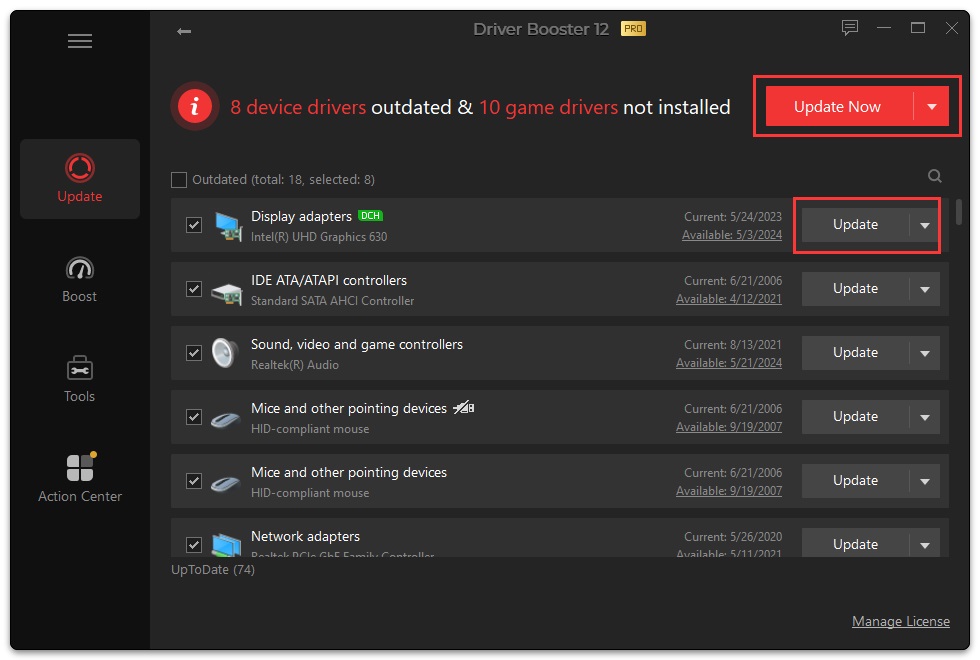
Generally, there are 3 stages for driver update:
- Download drivers. With breakpoint resume technology, you are allowed to stop anytime and Driver Booster will continue the download next time instead of starting over again.
- Create a restore point. If you disable the option 'Automatically create a system restore point before a driver is installed' in Settings, this stage will be skipped.
- Install the downloaded drivers.
Note: For Pro version users, there may be one more stage – automatically back up a driver before it is installed, if this checkbox is ticked in Settings.
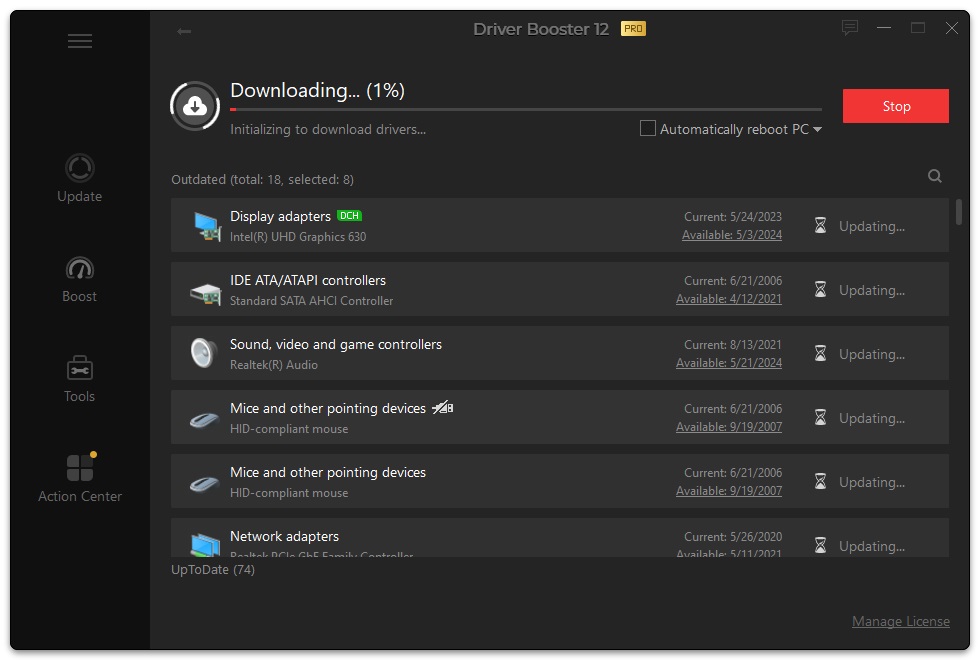
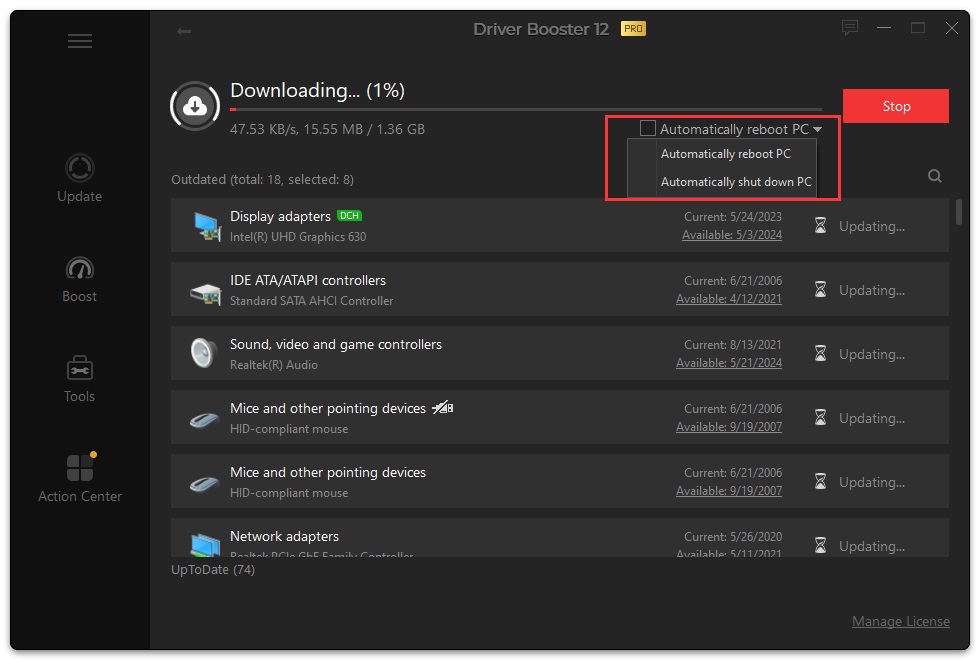
The time needed for the update depends on driver size and download speed. You can choose Automatically reboot PC or Automatically shut down PC on the updating screen. After it's completed, you will get a countdown message to reboot PC or shut down PC accordingly.
Boost
The Boost module in Driver Booster offers two features: Game Boost and System Optimize.
Game Boost
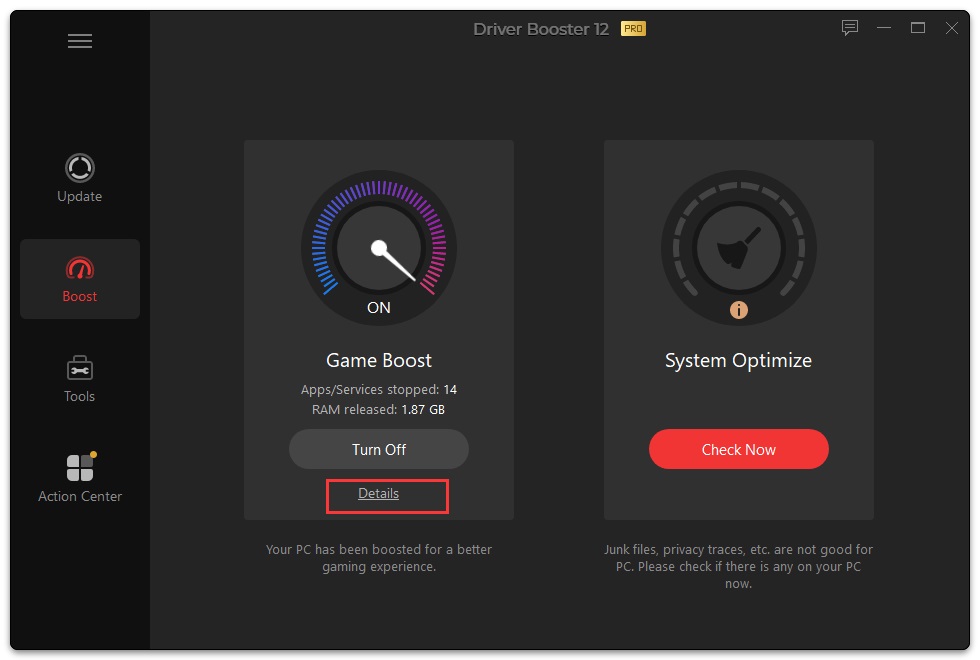
Game Boost stops unnecessary apps/services to help you get a better gaming experience. You can just click Turn On to boost. Before the boost, you can click the Configure text link and select the items you want to stop to boost your game performance.
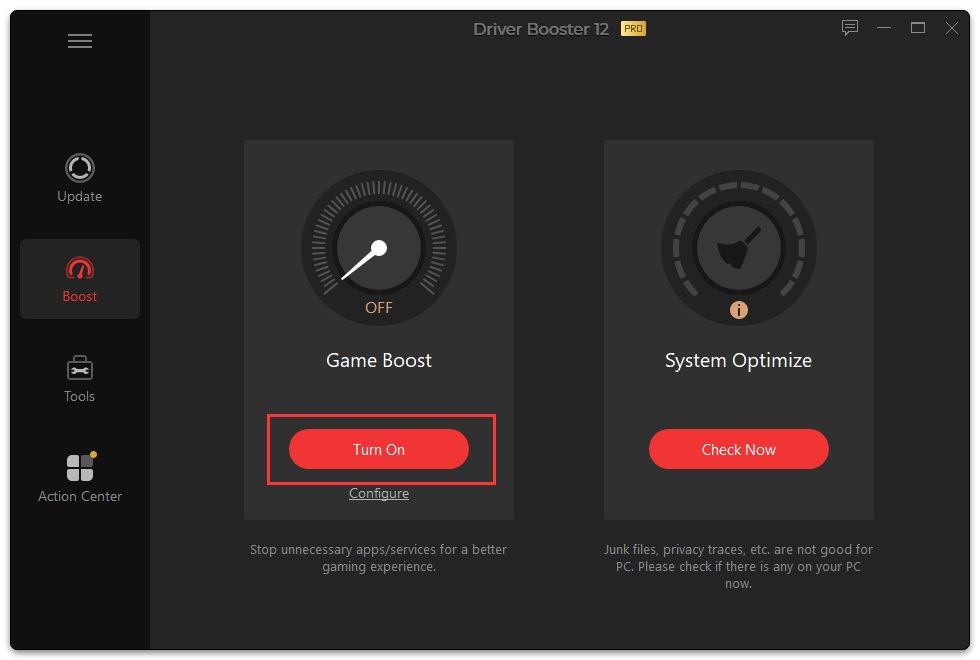
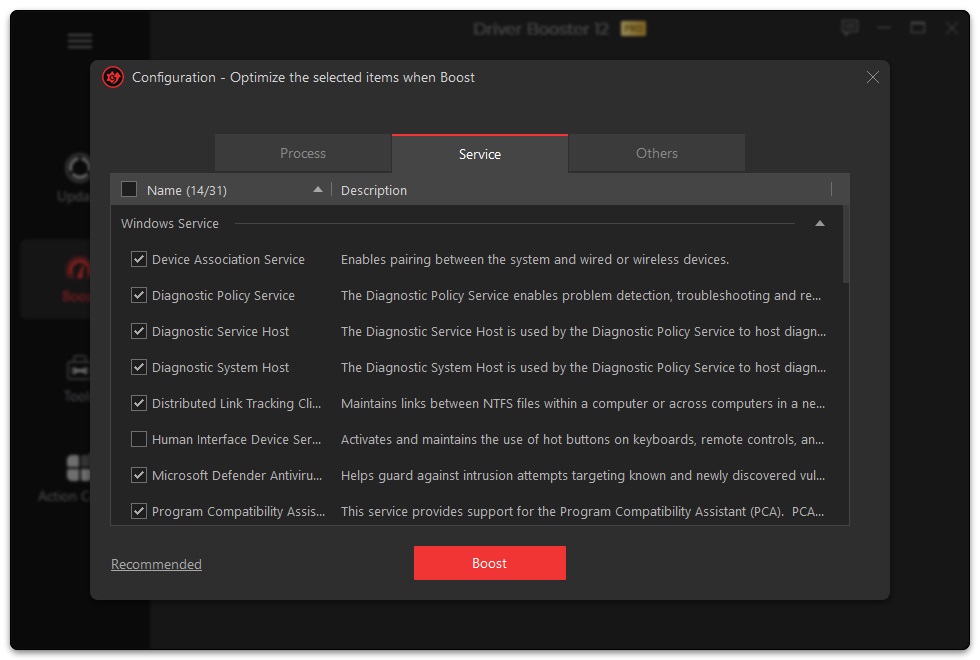
After the boost, you can click the Details text link to view all the stopped processes/services/apps. And you can click the Turn Off button to turn off Game Boost at any time.
System Optimize
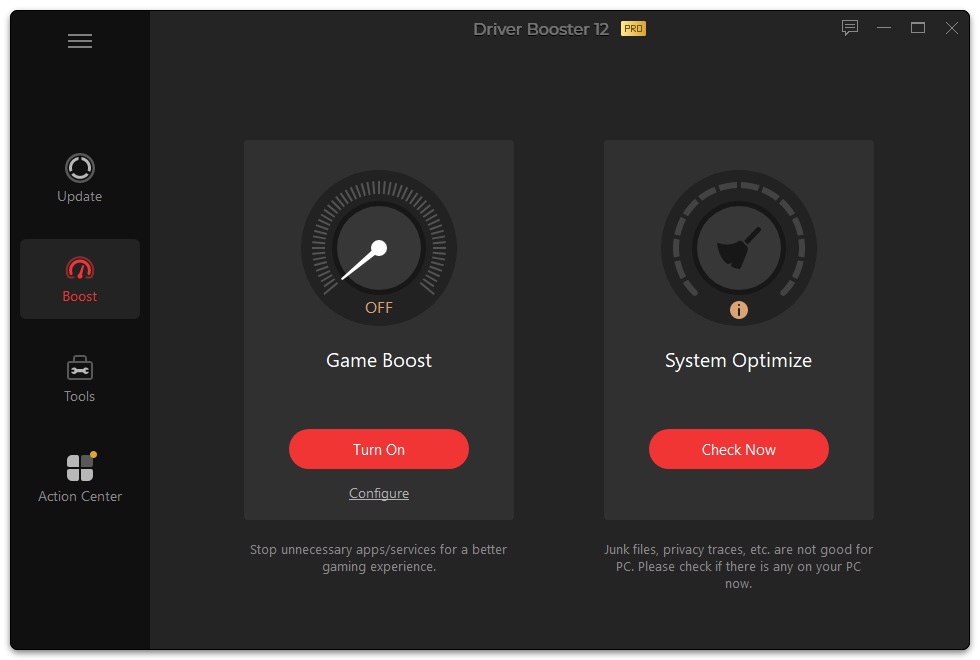
System Optimize helps clean up junk files, privacy traces and redundant registry entries, optimize your internet speed and system with the all-in-one product Advanced SystemCare.
If you haven't installed Advanced SystemCare yet, clicking the Check Now button will guide you to install Advanced SystemCare for further optimization.
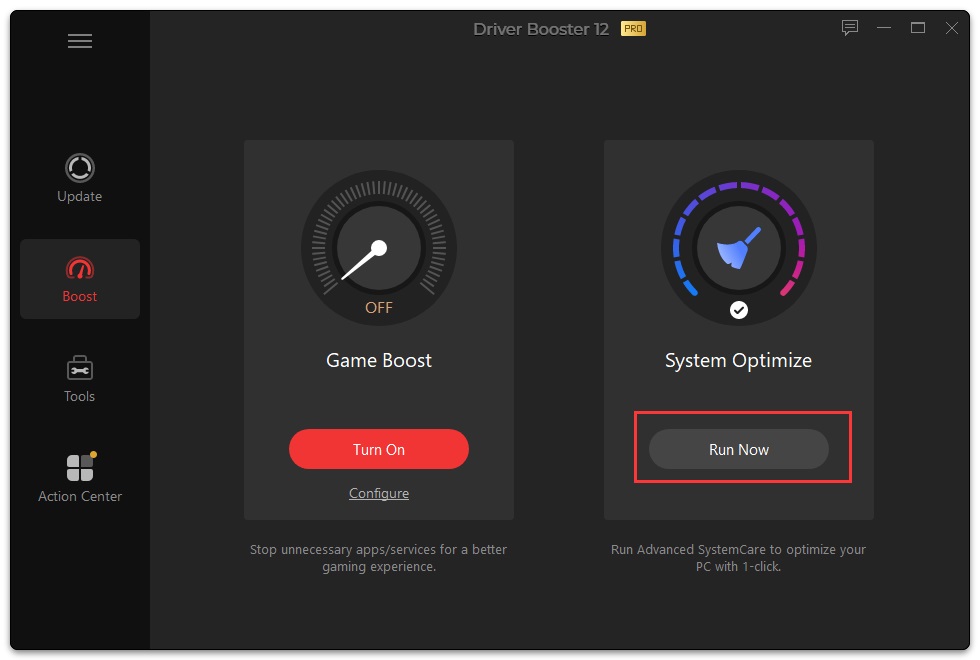
If you've already installed Advanced SystemCare, you can click the Run Now button to optimize your system with Advanced SystemCare.
Tools
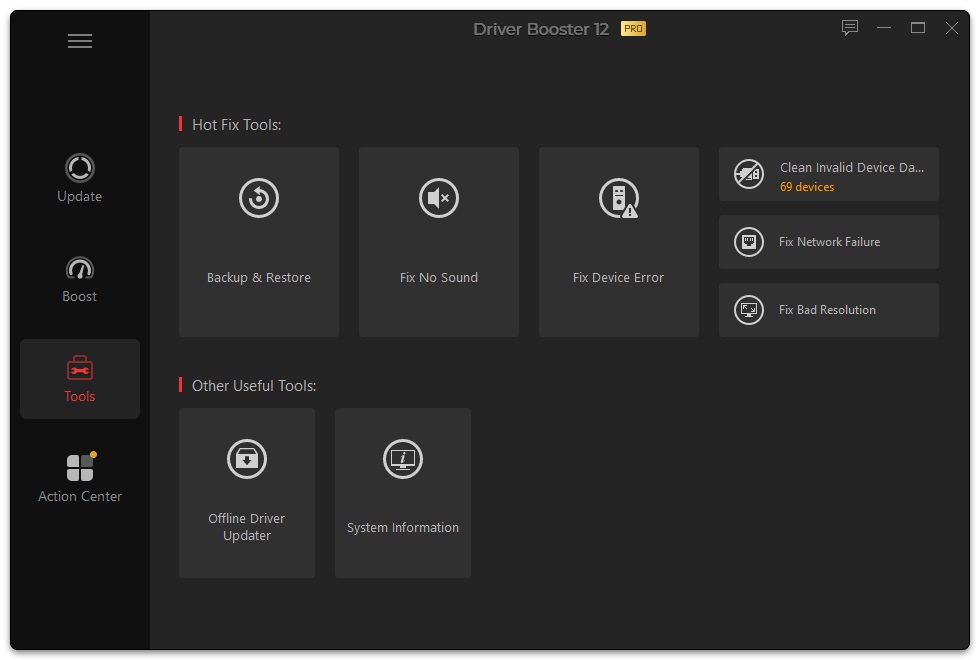
Driver Booster provides you with 6 Hot Fix Tools and 4 Other Useful Tools. They are Backup & Restore, Fix No Sound, Fix Device Error, Clean Invalid Device Data, Fix Network Failure, Fix Bad Resolution, Fix Missing Game DLLs, Fix Incompatible Drivers, Offline Driver Updater, and System Information.
These tools can help detect and fix some common problems like no sound, network failure, wrong resolution, missing DLLs, incompatible drivers, update drivers offline, clean invalid device data, and check the system & hardware information. Besides that, the tool Backup & Restore can back up drivers, restore your drivers and restore your system to a previous good status. You can use these tools anytime by clicking the  icon on the left side of the main interface and clicking the tool you need.
Note:
- The tool Fix Device Error is only available for Pro version users.
- For how the tool Offline Driver Updater works, click here for details.
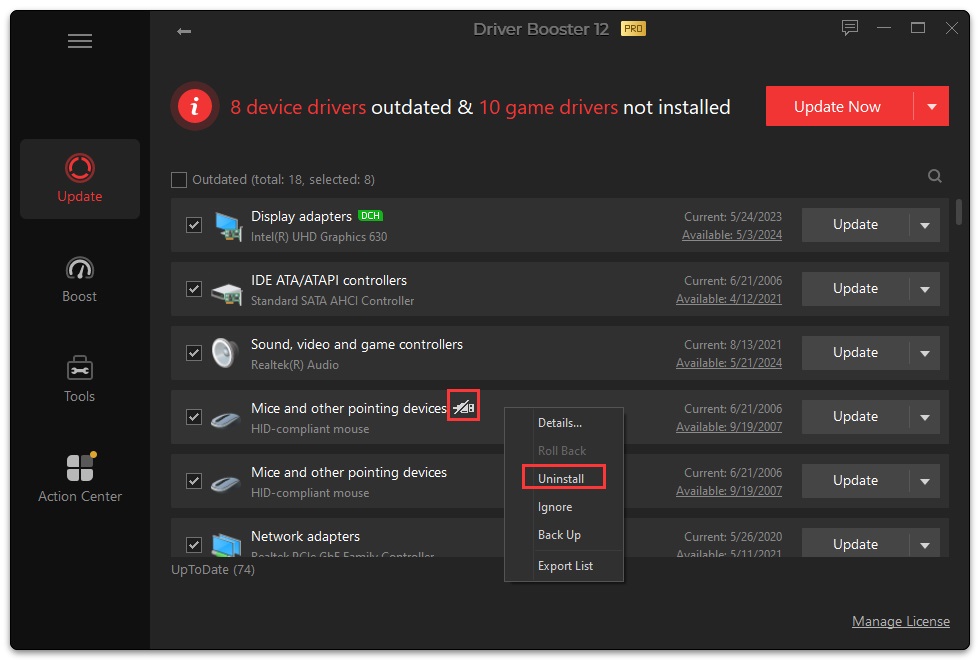
- Unplugged devices are those devices flagged with the
 icon in the driver list, which means they are not plugged into your PC at this moment. It is not a 'problem' and needs no 'fix'. But, if you are sure you won't use them anymore, right-click on the driver , and select Uninstall to uninstall them one by one.
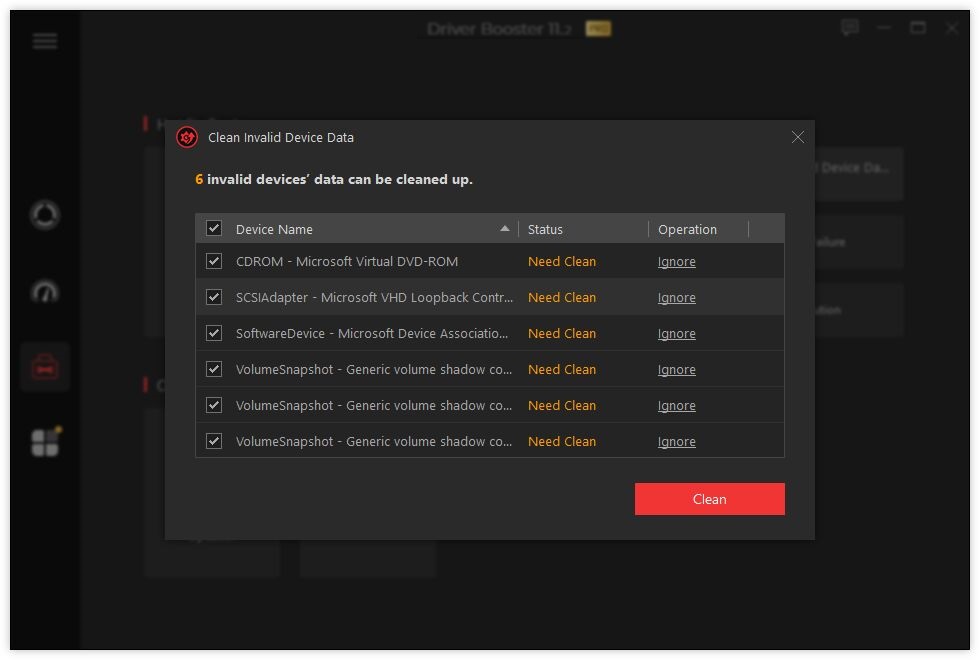
 - If there are too many good-for-nothing unplugged devices, you can click the tool Clean Invalid Device Data to remove the invalid device data in bulk. You can also click the Ignore text link to keep the device data and clean the rest by clicking the Clean button.
Note: Clean Invalid Device Data will remove the unplugged device data only. The unplugged devices' drivers are still installed on your computer. When you plug them again, you can use them without any problems.
Action Center
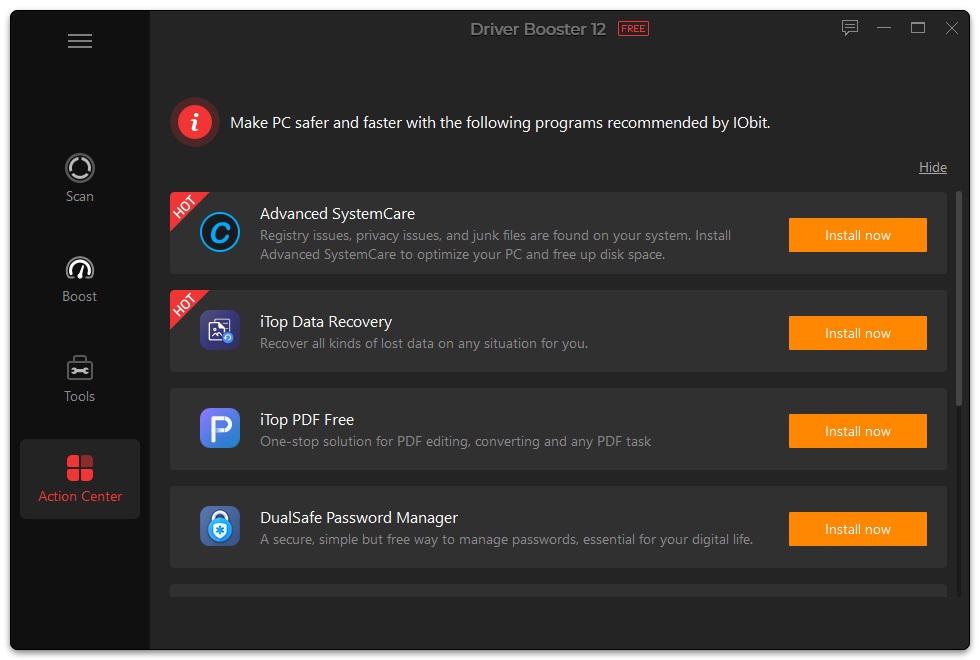
Click the  icon to open Action Center and learn more about how the other recommended well-known IObit products can help you with your computer. If you haven't installed them yet, it's strongly recommended that you click the Install now button to install them.
If you are using Driver Booster Pro, you can also find an exclusive offer for Driver Booster Pro version users only to purchase other IObit programs and IObit trusted Partners' products at a very considerable discount here.
Note: Clicking Hide at the top can keep the recommended programs out of sight if you are not interested in them.
Auto Driver Update
Note: Auto Driver Update is a PRO exclusive feature. You can enable it in the Settings.
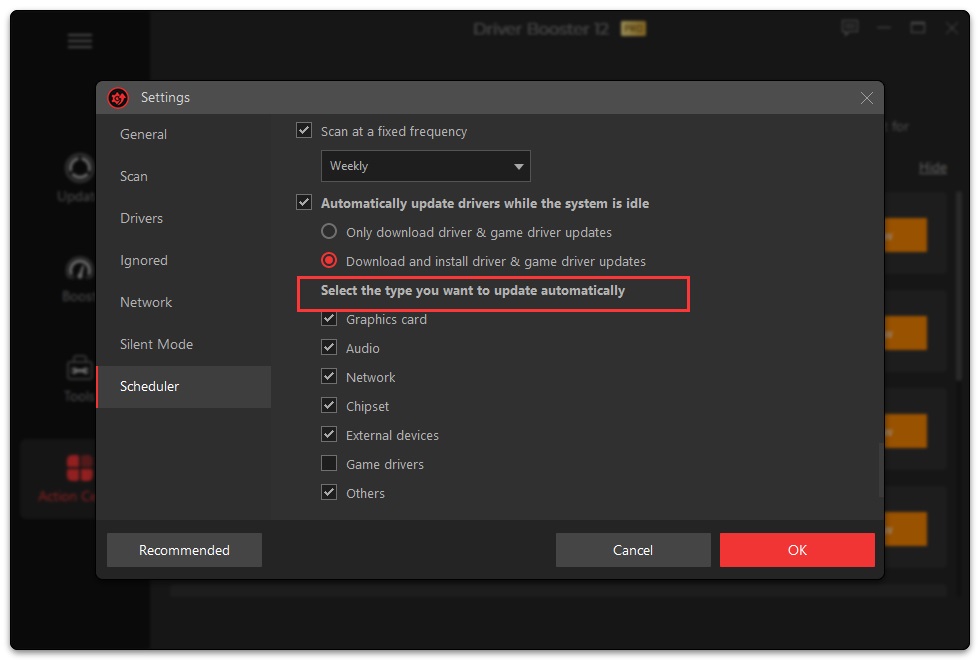
If the option 'Automatically update drivers while the system is idle' is ticked, Driver Booster will automatically 'download' the updates or 'download and install' the updates in the background when your system is idle.
If you tick the 'Download and install driver & game driver updates' option, you can also select the types of drivers which you want to update automatically.
Restore Driver Updates
To minimize the bad effect of any unexpected issues caused by driver updates, Driver Booster provides 3 strategies for easy repair: Driver Roll Back, Driver Restore, and System Restore.
Roll Back
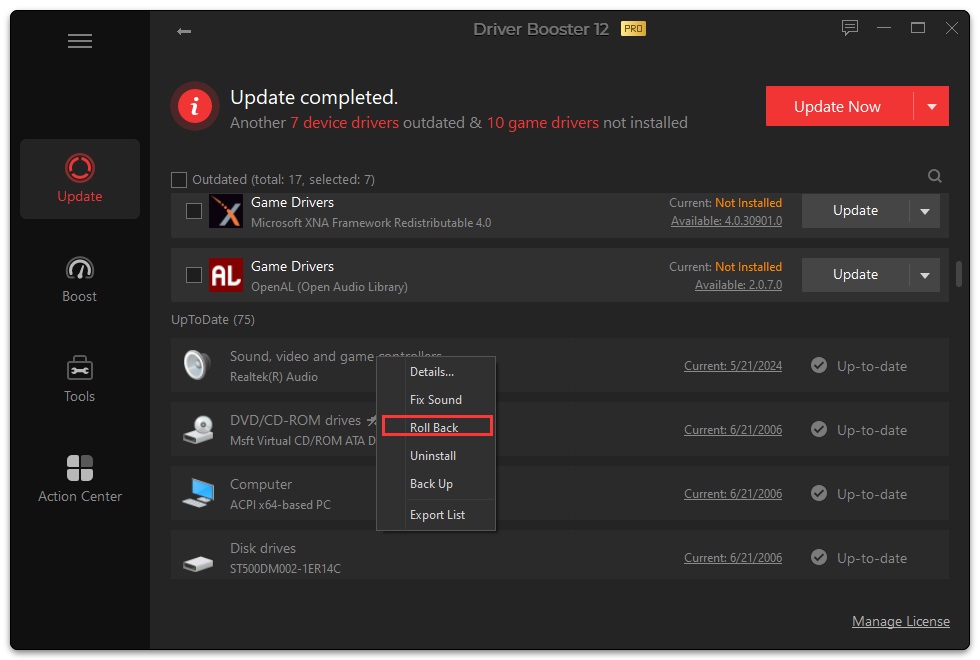
In the scan result window of Driver Booster, you can click the  button at the end of every listed outdated driver, and select Roll Back, if it is available, to roll back the driver to its previous version.
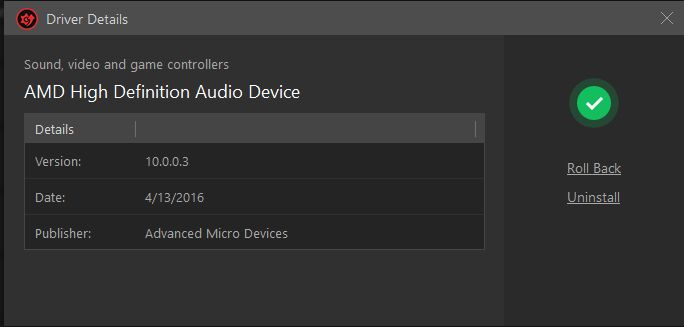
And you can also click the version link (Available or Current) to open Drivers Details window to check whether you can roll back the driver to its previous version.
Restore
To restore a driver, you have backed up drivers first. Driver backup feature included in Driver Booster can help you back up drivers so that you can restore drivers when you need to.
Note: Driver Backup is available for Pro version users only.
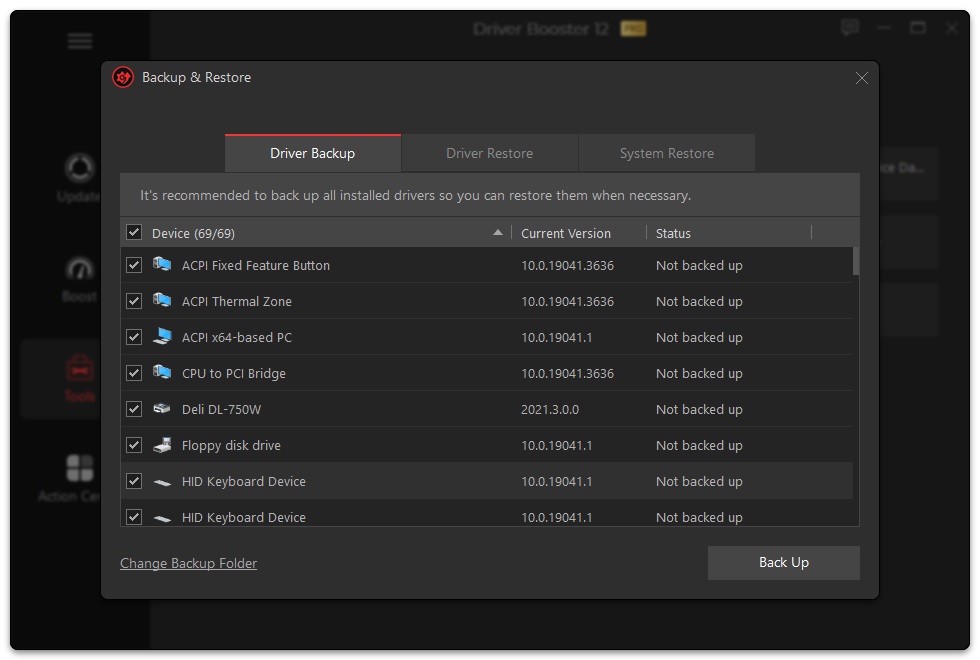
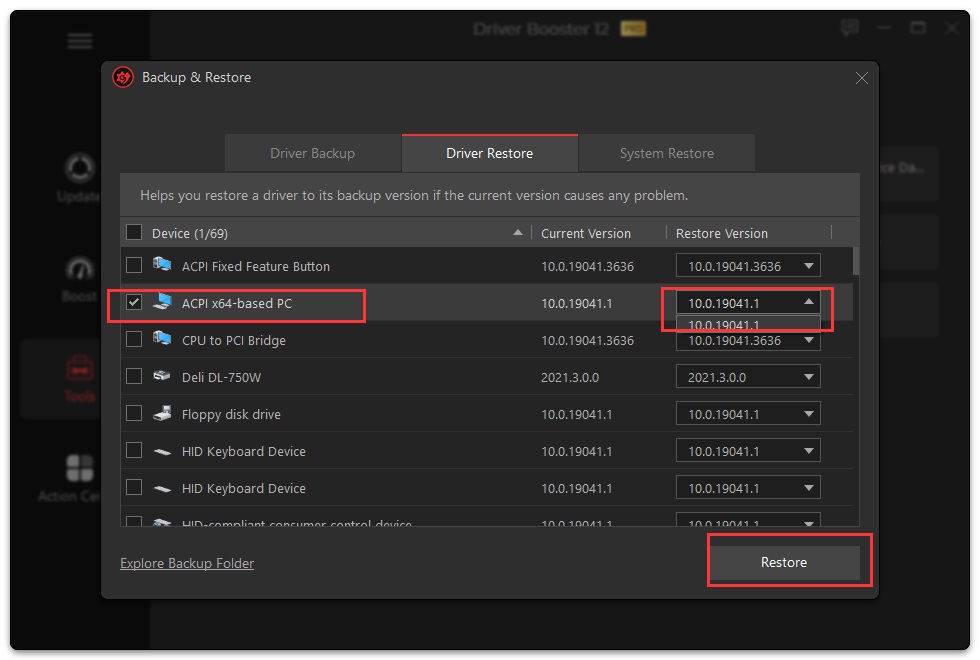
Click the icon on the left side of the main interface and open Backup & Restore. If there is any driver version available for backup, it will be listed under the Driver Backup tab. To back them up, just tick the checkbox before them and click the Back Up button.
In the Driver Restore tab, you can select the driver you want to restore, choose the wanted version, and click the Restore button to re-install the backed up (the previous) version.
System Restore
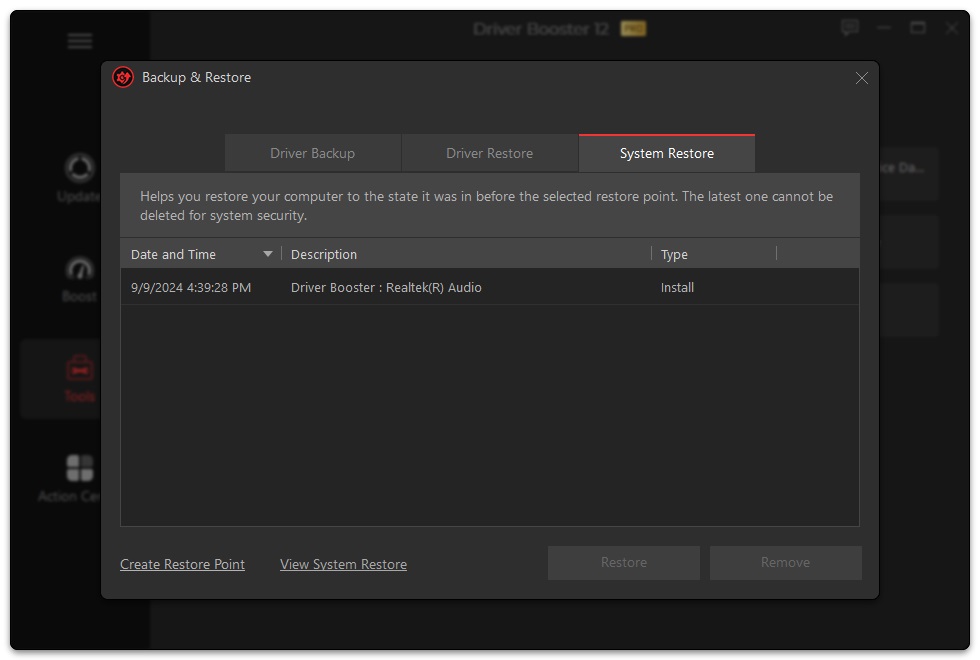
Driver Booster creates a restore point before updating the driver by default. You can restore your system to a point according to Date and Time or Description.
Note: Restoring system will undo all changes made after that restore point. Driver Booster supports manually creating or removing restore points.
Ignore Unwanted Updates
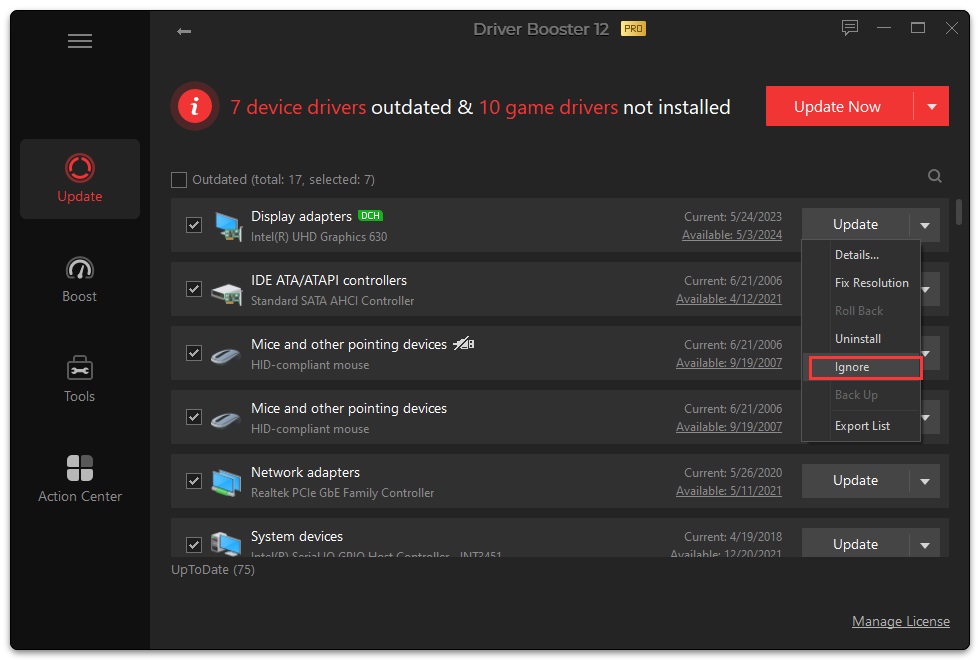
If there is any driver you don't want to update, you can click the button at the right side of a driver line, and select Ignore to ignore either this driver update or all updates of this device.
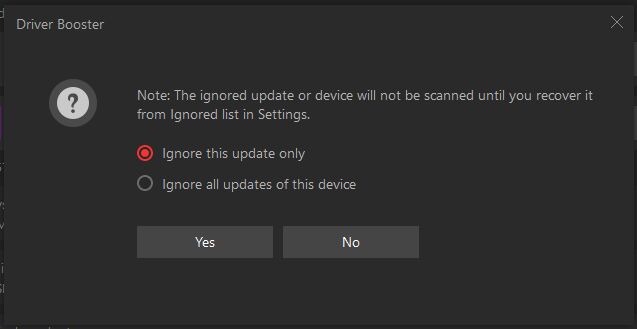
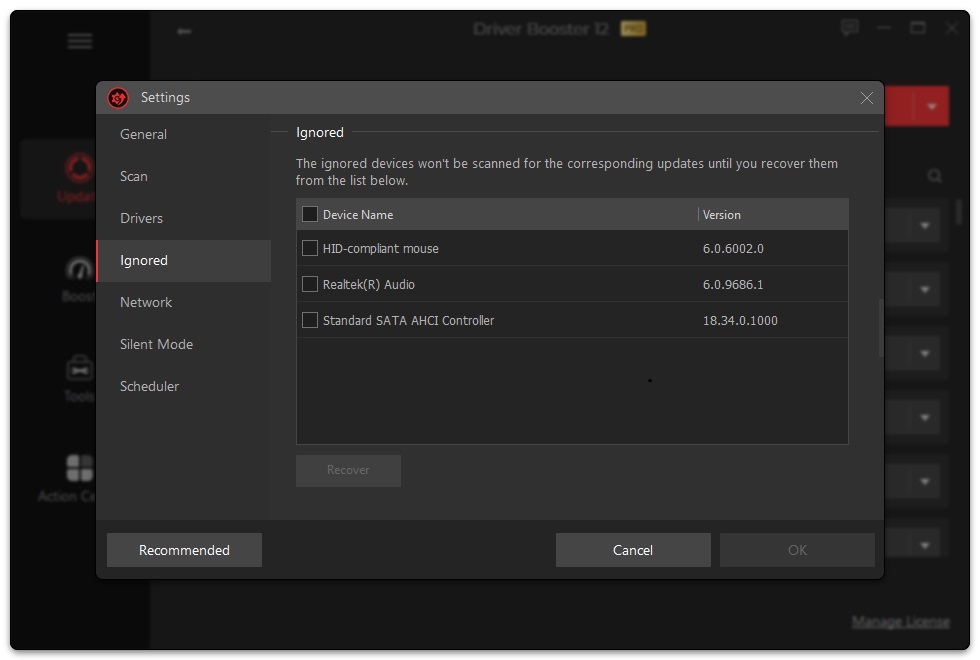
The ignored drivers won't be scanned for the corresponding updates until you recover them from the Ignored list in Settings:
Driver Update History
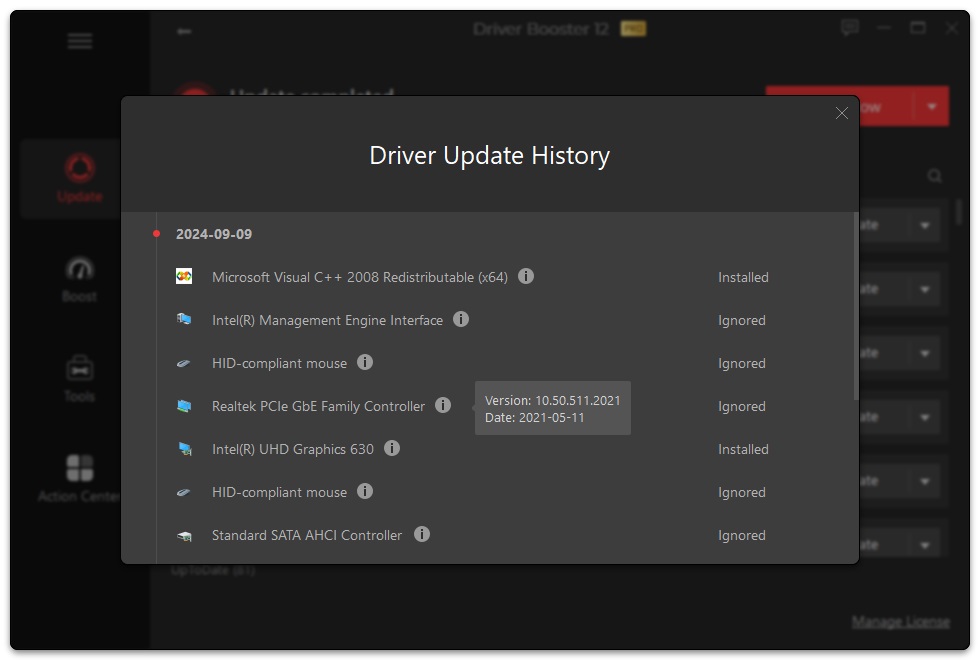
Click the icon at the top left of the main interface and select Driver Update History to check what operation you did about your drivers and components with Driver Booster.
Silent Mode
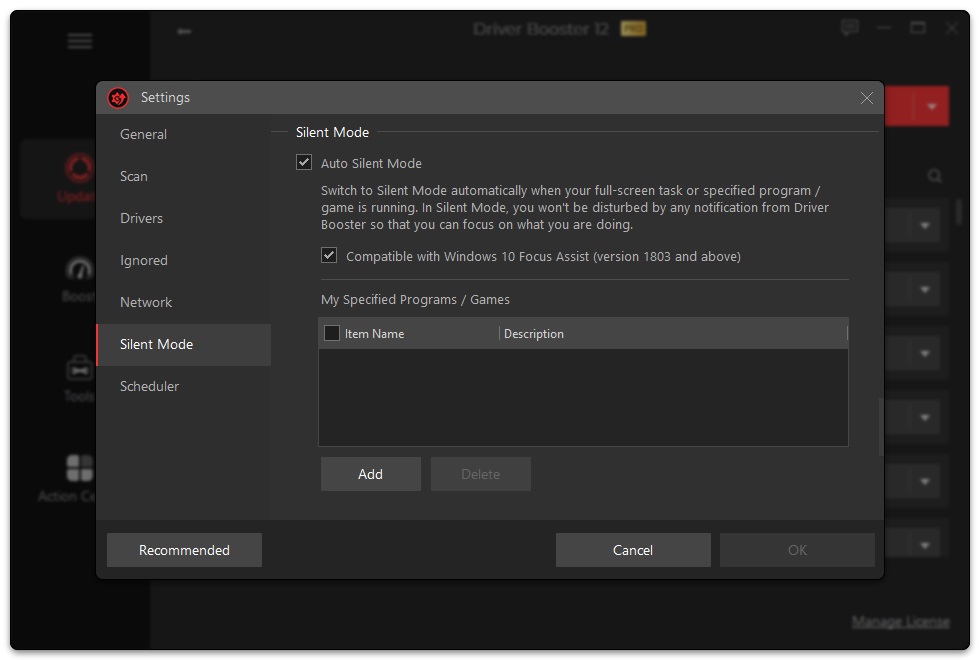
Silent Mode can help you a lot when you want to focus on what you are doing. Once you select the option Silent Mode in Settings, Driver Booster will automatically turn to silent mode when your full-screen task or specified program/game is running, which means you will not receive any notification from Driver Booster.
If any program or game you want to stay focused on, just add it to My Specified Programs/Games list. You can also delete any program or game from the list as per your own needs.
Configure UI
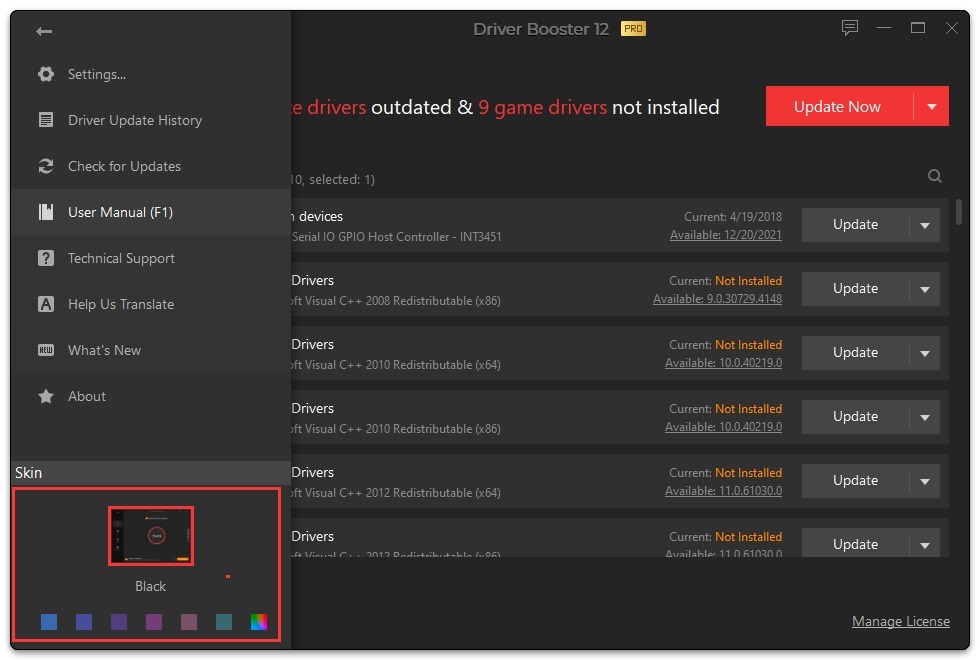
Click the icon, you will see the Skin options at the bottom left of the popup window. You can decide the color as you like.
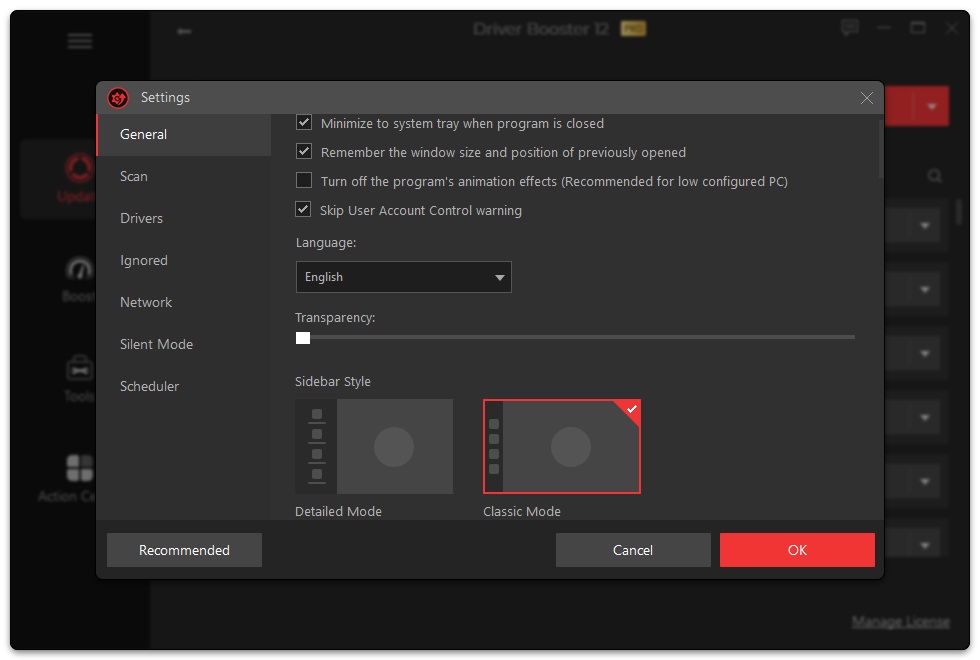
And you can click Settings to quickly change Language and Transparency under General.
Configure the Program
Click the icon, select Settings…, configure each function as per your needs, and never forget to click OK to save the changes. Clicking Recommended can restore to default settings.
Technical Support
Every feedback from you is valued. To ensure you can reach us in time, we provide several feedback channels:
It's recommended to read our FAQs before looking in the other sections for help. Because sometimes, the questions have already been answered before you ask them!
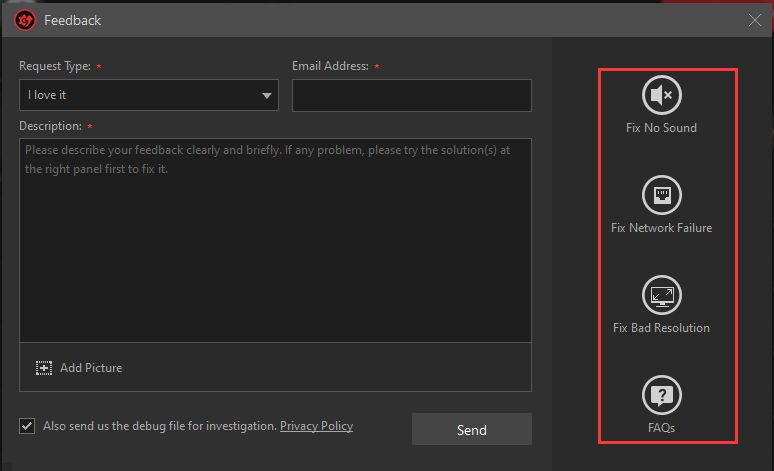
Click the  icon at the top right of the main interface of Driver Booster to open the Feedback window. Make sure your Email Address is correct, choose a proper Request Type, and specify your feedback in Description. Besides, it will be very helpful if you can click Add Picture to send us screenshots of the related error messages if any.
Note: In Feedback, it will intelligently provide you with a proper solution as per the Request Type you select.
Post your questions and concerns to IObit Forums and discuss them with many other experienced and enthusiastic users and our technical staff.
Besides the above feedback channels, you can also give Online Feedback for email support. We will reply to you ASAP.
Thank You
Thanks to all Driver Booster users, who motivate us to make this product better and better.
Thanks to IObit Forum Administrators, Super Moderators, and Moderators, who dedicate their time to assisting our forum visitors and keeping the forums running smoothly.
Thanks to the following volunteer translators, who greatly help improve Driver Booster user experience and introduce it to more users worldwide:
MFM Dawdeh,ShaJaraH, Lyuben Panchev, Arnau Barrabeig, Jordi Rigol Ripoll, Deng Tingjuan, alan@tw, JUDr. Jan Vřešťál, Jørn Runge, Ernie Wong, Veikko Muurikainen, JeuMeu, Roland LALIS, Frédéric Dectot, Nacho Lomidze, Alexander Schmidt, Hans-Chr. Kaller, George Vardakis, Eli Ben David, Brechler Zsolt, Purwo Adi Nugroho, Erzam Bayu, Claudio Birello, Nagai Tsuneo, JaeHyung Lee, Markflynn, Thor Stange, Mohammadmahdi Mansouri, Staszek, Igor Rückert, Fernando Santos, Cosmin Barna, иван войтенко, Ilija Komljenović, dedko58, Marjan Mirai, Jadran Rudec, Roberto Paiva, Annelie Pernheden, Per, Sıtkı Evrenkaya, Rid Destro, Kiên Phạm Minh